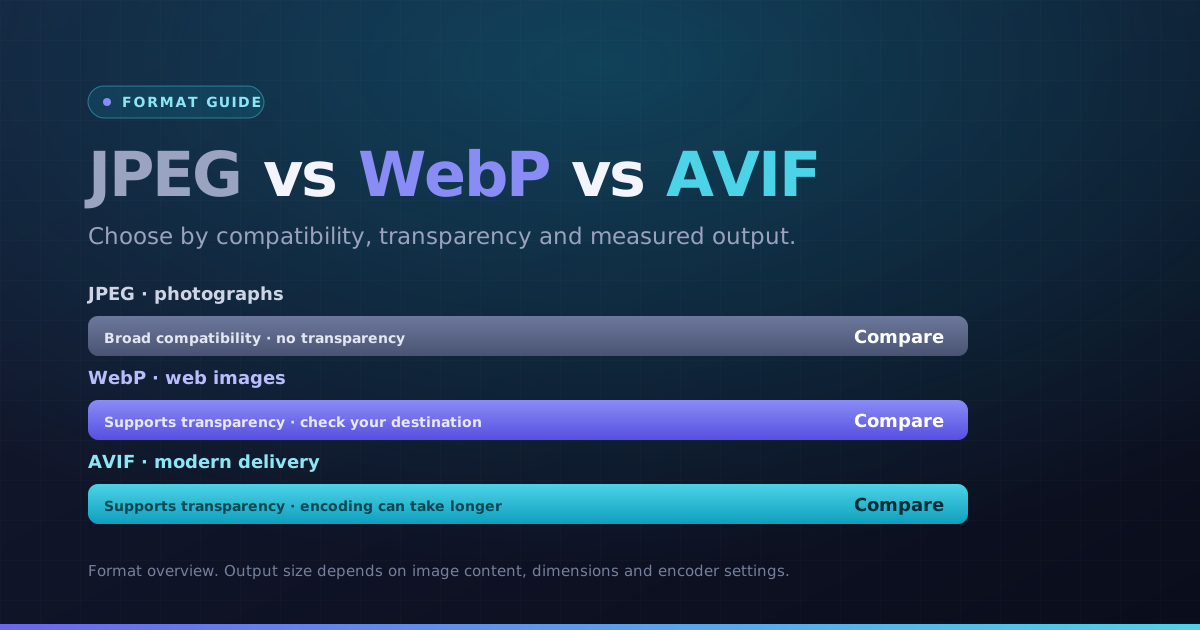
There is no universal winner among JPEG, WebP and AVIF. The right output depends on the image, whether you need transparency, where it will open and how much encoding time the workflow can afford. Keep the original and compare export copies.
Compare the practical differences
| Need | JPEG | WebP | AVIF |
|---|---|---|---|
| Opaque photographs | Widely used for sharing | Useful web-delivery option | Useful web-delivery option; encoding can take more work |
| Transparency | Not supported | Supported by the format | Supported by the format |
| This site’s export | Quality-controlled JPEG | Quality-controlled WebP | Quality-controlled AVIF |
| Exact decoded-pixel preservation | Not promised | No dedicated lossless switch here | Not promised |
| Destination support | Check the receiving service | Check the receiving service | Check the receiving service |
A format’s specification can support features that a particular tool does not export. For example, WebP supports lossless compression, but this site’s converter uses a quality setting. Do not interpret “PNG to WebP” as a promise of lossless conversion.
When JPEG is a sensible choice
JPEG is a practical option for a photograph that will be attached to a message, passed to an editor or uploaded where JPG is explicitly requested. Check small text and edges for artifacts. A transparent source will be placed on white by this site’s JPEG output.
When to try WebP
Try WebP for web images when the site and its downstream tools accept it. It can combine transparency with quality-controlled color data. Compare the actual output: an already optimized source may not get smaller, and aggressive settings can damage logos or lettering.
When to try AVIF
AVIF is another option for web delivery. Test fine textures, gradients and color appearance, as well as file size. Local AVIF encoding can take longer on a phone, so balance a possible download saving against the effort needed to produce the file.
Run a fair comparison using your own images
- 1Choose one photo, one screenshot and one transparent graphic representative of your work.
- 2Use the same pixel dimensions for each export.
- 3Compare formats at similar visible quality, not simply the same slider number.
- 4Record actual bytes, alpha handling, time and whether the destination opens the file.
- 5View the image at its intended display size and keep the smallest version that still satisfies the task.
Quality scales are encoder-specific. A setting of 80 in JPEG is not directly equivalent to 80 in AVIF. This guide does not present a fabricated benchmark or a fixed percentage saving.
Keep PNG when the workflow needs it
PNG is useful when a workflow asks for PNG or you need a lossless decoded-pixel export. It can be larger for photographs. Converting a previously lossy image to PNG does not recover missing detail, nor does it preserve every source metadata field.
- Try a JPEG-to-WebP export
- Try a JPEG-to-AVIF export
- Convert transparent PNG artwork to WebP
- Create a PNG editing copy from AVIF
Format choice is only part of page performance
A small format change will not compensate for serving an unnecessarily large image. Use dimensions appropriate for the layout and measure the real page. A new image format does not by itself guarantee a search-ranking improvement.