Why Use a Bulk Image Compressor? (Batch Image Compression to ZIP)
Compress a collection of photos using one set of settings in your browser. The picker accepts up to 100 files per selection, with a 100 MiB (104,857,600-byte) limit per file and an 80-megapixel decoding limit. Device memory can require smaller batches.
How Batch Image Compression Works in Your Browser
Each image is processed independently using browser image APIs and, where needed, local encoders. Review each result and any failed files before downloading successful outputs as individual files or a ZIP.
Image files are processed on your device rather than uploaded for compression. Large images still consume browser memory; start with a small batch on a phone.
How to Compress Multiple Images at Once in 4 Easy Steps
- 1Choose several supported images. Start with a modest batch on a phone.
- 2Set the output format and quality, then start compression.
- 3Select individual results to compare quality and check failures.
- 4Download successful files together as a ZIP or choose individual downloads.
Example: a mixed product-photo batch
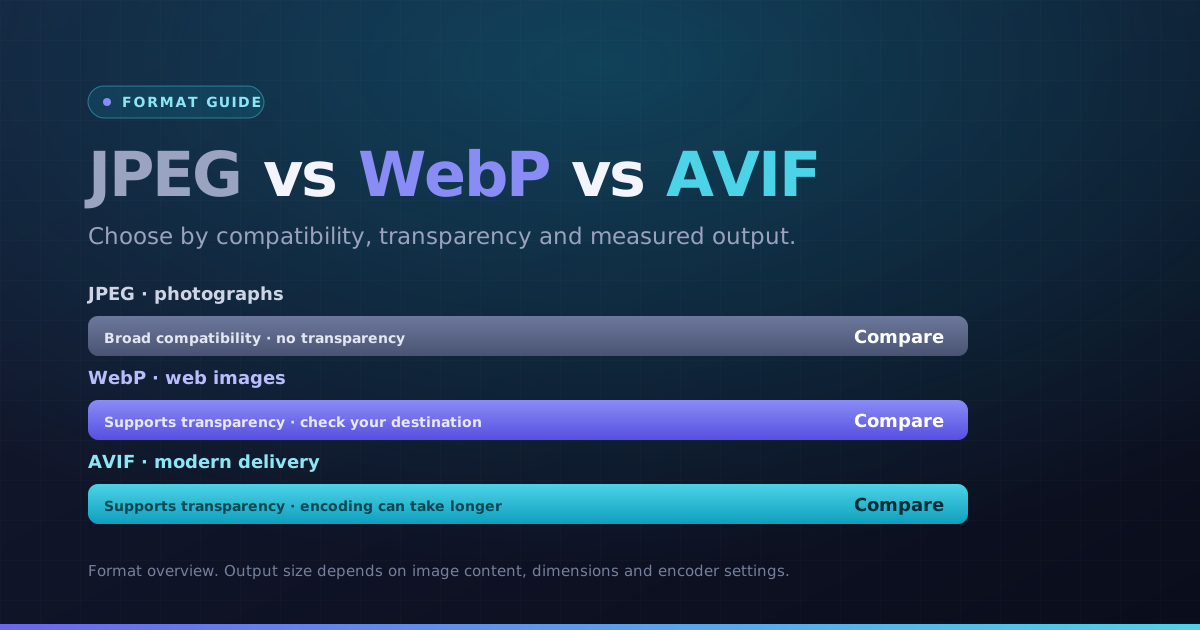
Use one photograph, one transparent logo and one screenshot to check your chosen settings before processing the whole collection. Watch for white backgrounds when switching transparent files to JPEG.
Prepare a batch that is easy to review
Keep originals in a separate folder. Download, extract the ZIP and open a few outputs in the destination application before replacing website assets.
Key Benefits
- Multiple-file queue with per-image status
- Before/after comparison for selected images
- Individual and ZIP downloads
- Duplicate output names kept distinct in ZIP