Why Convert HEIC to JPG? (Fix Windows & Android Compatibility)
Apple devices running iOS 11 and later save photos in HEIC (High Efficiency Image Container) format by default. While HEIC saves space on iPhones, it cannot be natively opened on older Windows PCs, Android devices, or uploaded to many web portals. Our HEIC to JPG converter solves this incompatibility instantly.
Convert HEIC to JPG online for free in batches of dozens of photos. Enjoy vibrant colors, proper EXIF orientation correction, and universal JPEG compatibility.
How HEIC to JPG Conversion Works (Client-Side Wasm Decoding)
Our HEIC to JPG converter decodes proprietary Apple HEIF/HEIC containers directly in your web browser using client-side WebAssembly decoders. It re-encodes each photo into a high-quality JPEG with customizable quality sliders.
Your image files are processed on your device instead of uploaded for conversion. Download individual JPEGs or a batch ZIP, and keep the original HEIC files for information that a JPEG export may not retain.
How to Convert HEIC to JPG Online in 4 Easy Steps
- 1Choose your HEIC or HEIF photos. A single image starts converting automatically. For several images, select Convert Images to JPG after adding the files.
- 2Start with the default quality of 90. Lower it for a smaller JPEG, then compare the result. Changing quality converts the selected images again.
- 3Preview the converted JPG and check its orientation, pixel dimensions and file size. JPEG may be larger than the original HEIC.
- 4Download one JPG, or download multiple successful results as a ZIP. If a file fails, its error stays visible and the other completed images remain available.
A real HEIC conversion: file size and dimensions
We converted the same 2,912,776-byte HEIC photo at two JPEG quality settings in Chrome 154 on Windows, checked the output file type and opened both JPG previews. Both results measured 3024 × 4032 pixels.
| File / setting | File size in bytes | Output dimensions |
|---|---|---|
| Original HEIC | 2,912,776 | — |
| JPG at quality 90 | 2,705,557 | 3024 × 4032 px |
| JPG at quality 75 | 1,355,910 | 3024 × 4032 px |
Checked on 8 October 2026. This is one image, not an average or a guaranteed saving. Image detail, source encoding, quality and browser can change the result. Matching dimensions do not mean identical image quality; inspect the downloaded JPG before discarding an original.
HEIC vs JPG: choose compatibility, then check the result
| What matters | Original HEIC | Converted JPG |
|---|---|---|
| Opening and sharing | Support depends on the receiving app | Widely supported; check the destination’s requirements |
| File size | Depends on the source image and encoding | May be larger or smaller; compare the actual bytes |
| Image quality | Keep as your original | JPEG quality trades detail for file size |
| Transparency | May be present in the source | Transparent areas become white |
| Extra image information | May include metadata and additional image data | Still image export; do not rely on metadata, depth or motion being preserved |
Keep the HEIC original if you may need it later. Converting to PNG is another option when you want to avoid an additional JPEG compression step, but it can produce much larger files and cannot restore detail already lost.
A converted JPG is still rejected by an upload form
A valid JPEG may still exceed a form’s file-size limit or have the wrong pixel dimensions. Check the form’s allowed formats, maximum KB or MB, width and height. Conversion changes the format; it does not automatically meet every upload rule.
Batch conversion: errors, memory and downloads
Start with a few photos on a phone or older computer. Each file has its own status, so one damaged image does not prevent other results from finishing. Download the successful images, then retry the failed file separately.
Keep this tab open until conversion and ZIP preparation finish. Opening large photos uses more memory than their compressed file sizes suggest. This tool limits inputs to 100 MiB (104,857,600 bytes) per file and images to 80 megapixels; your browser may run out of memory below those limits.
Take new iPhone photos in JPEG format
On a supported iPhone, open Settings, then Camera, Formats and Most Compatible to capture new photos as JPEG. Existing HEIC files are not converted by that setting. If you prefer to keep efficient originals, leave capture settings as they are and convert only the photos you need to share.
Key Benefits
- HEIC and HEIF input with JPG output already selected
- Adjustable JPEG quality and actual before/after file sizes
- Converted JPG preview and output pixel dimensions
- Individual downloads and ZIP export for multiple successful images
- Local image processing without an account or server upload
Frequently Asked Questions
Read the full guide
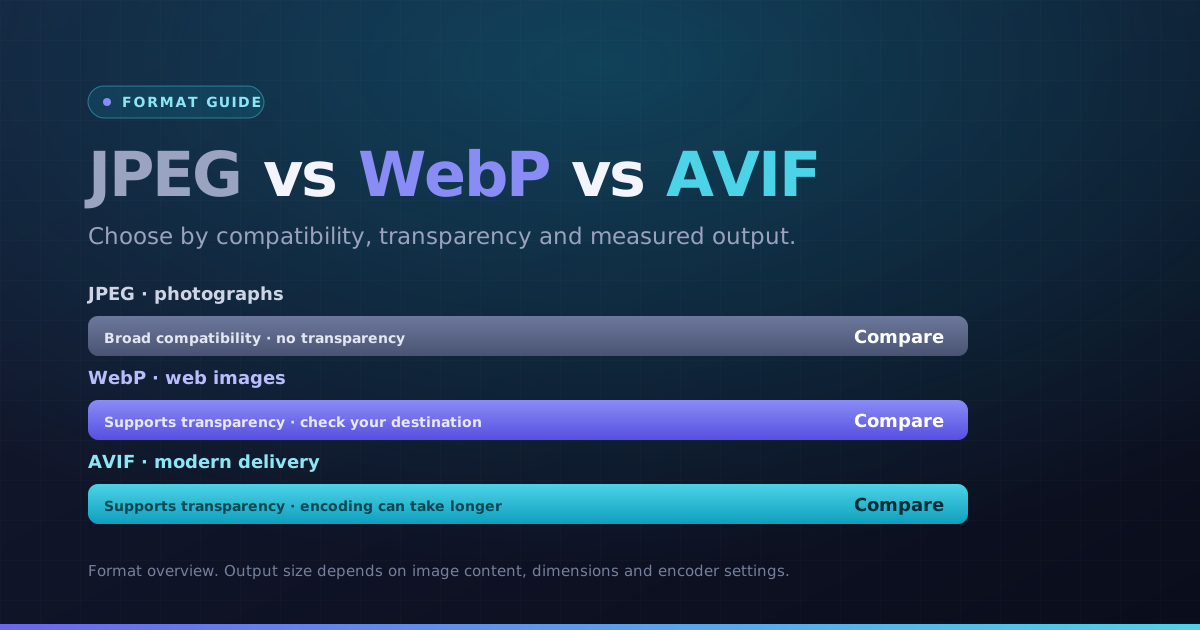 Formats · 3 min readWebP vs AVIF vs JPEG: Choose by Image and DestinationChoose a format for the actual photo, graphic and destination. Compare bytes and visible detail instead of assuming the newest format always wins.Updated October 8, 2026
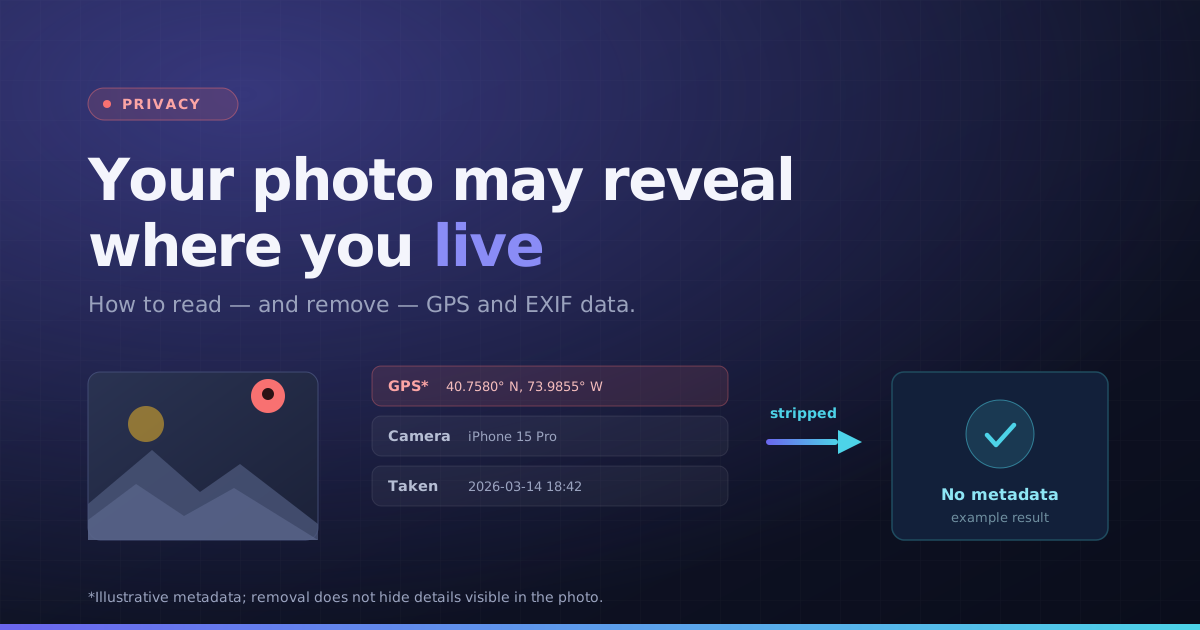 Privacy · 3 min readRemove GPS and EXIF Data Before Sharing a PhotoPhoto privacy involves both metadata and visible details. Inspect the tags, check a cleaned copy and review the picture itself before sharing.Updated October 8, 2026