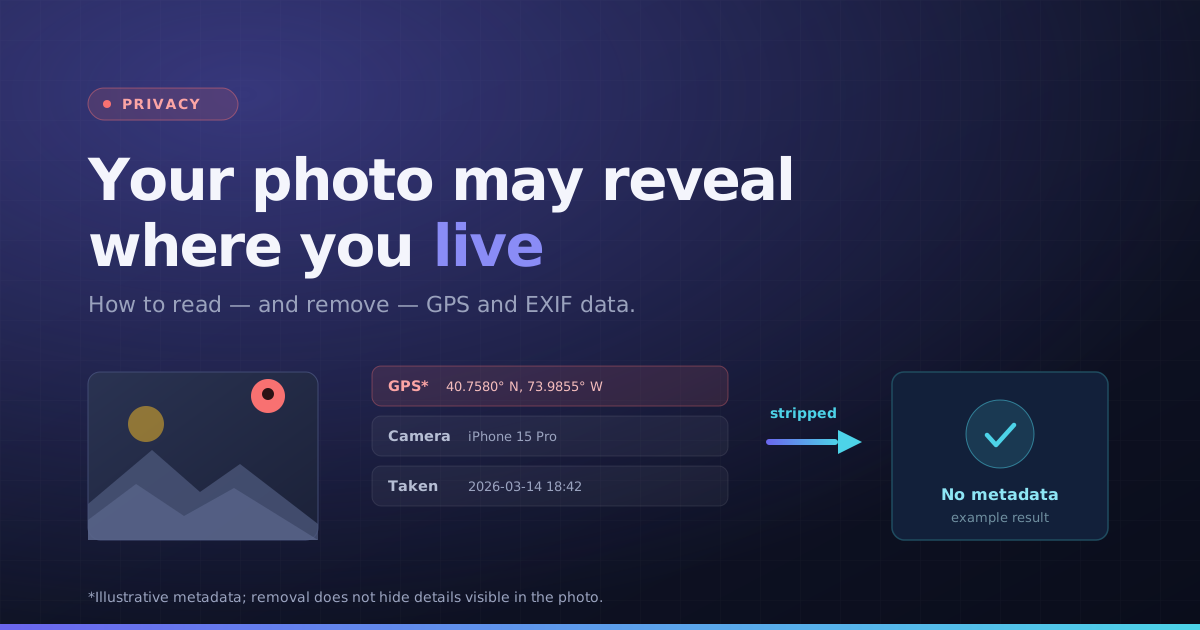
A photo can reveal information in two ways: tags stored alongside its pixels, and details visible inside the image. Removing EXIF metadata can help with the first. It cannot hide a face, address, badge, reflection or recognizable location in the picture.
Inspect the original before changing it
Choose a photo in the metadata viewer and look for capture dates, camera details, author fields and GPS information. Not every image has these fields. Screenshots and files passed through sharing apps may contain a different set of tags from the camera original.
No visible GPS result is not a forensic guarantee that a file has never contained location information. A parser may also be unable to read a particular metadata variant. Keep the original separate if it is needed as evidence or for an editing workflow.
Create and inspect a cleaned copy
- 1Select a supported still image and review the detected metadata.
- 2Use Remove Metadata to create a re-encoded copy.
- 3Download the clean image under an appropriate filename.
- 4Open that downloaded copy in the viewer again and inspect which tags remain.
- 5Review the visible image before posting it.
This implementation draws decoded pixels onto a fresh image and saves the result. It does not copy the source EXIF fields. That also means it is not a lossless metadata-only edit: JPEG pixels and file size can change, while a new encoder may include basic format information.
What metadata removal does not do
| Information | What to do |
|---|---|
| GPS or camera tags | Inspect the downloaded file after removal |
| An address or name visible in the photo | Use an appropriate visual edit or choose another image |
| Identifying filename | Choose a neutral download name when needed |
| Copies already shared elsewhere | Manage those copies on their own services |
| Local tool History | Remove stored results or clear this site’s browser data |
Use the demo without sharing a personal location
The EXIF tool includes simulated demo fields. They explain what the viewer can display without requiring a private photograph. Demo values are illustrative, not evidence that any uploaded file has those tags.
Remember the browser’s local History
Image processing happens locally. Successful results may be retained in the site’s History using the browser’s storage. Entries expire after 24 hours and are removed during history access or cleanup; use the delete controls sooner on a shared device. Closing a tab alone does not clear saved History.
Preserve attribution and context when needed
Before removing metadata from someone else’s work or an important record, consider whether attribution or provenance needs to be retained. This tool is a file utility, not a legal or forensic assessment. Use copies and keep the original where its context matters.
- Read how local image processing and History work
- Crop unwanted edges from an image
- Convert a HEIC still photo to JPG