Why Use a PNG Compressor? (Preserve Alpha Transparency & Details)
PNG supports lossless pixel storage and transparency, but detailed images can be large. This compressor can reduce the color palette at lower settings. The size saving and visual change depend on the image; transparency is retained in the output.
Ideal for app icons, UI graphics, logos, and digital illustrations, this browser-based PNG compressor delivers lightweight files that load fast on mobile and desktop web pages.
How PNG Compression Works (Color Palettes and Pixel Compression)
Lower settings use color quantization to reduce the palette before PNG compression. At 95 or above, the tool uses a lossless pixel-compression path. Check gradients and transparent edges because palette reduction can change their appearance.
Test your graphic with our preview inspector to ensure clean edges without color banding. Download single PNGs or export full batches in a single ZIP.
How to Compress PNG Online in 4 Easy Steps
- 1Choose one or more PNG images. A single image starts automatically; start a batch with the compression button.
- 2Adjust the quality setting and compare the before/after view.
- 3Check the actual bytes and pixel dimensions. If a form has a fixed KB limit, use the target-size tool.
- 4Download your preferred result or a ZIP of successful files.
A practical PNG comparison
Compare a logo at 90 and 95. Look for banding in gradients and changes around semi-transparent edges. Transparency support does not mean every color value remains identical.
Match the tool to the requirement
A quality setting, a pixel width and a KB limit solve different tasks.
Key Benefits
- PNG output selected
- Before/after image comparison
- Actual file-size changes, including no saving
- Batch results and ZIP downloads
Frequently Asked Questions
Read the full guide
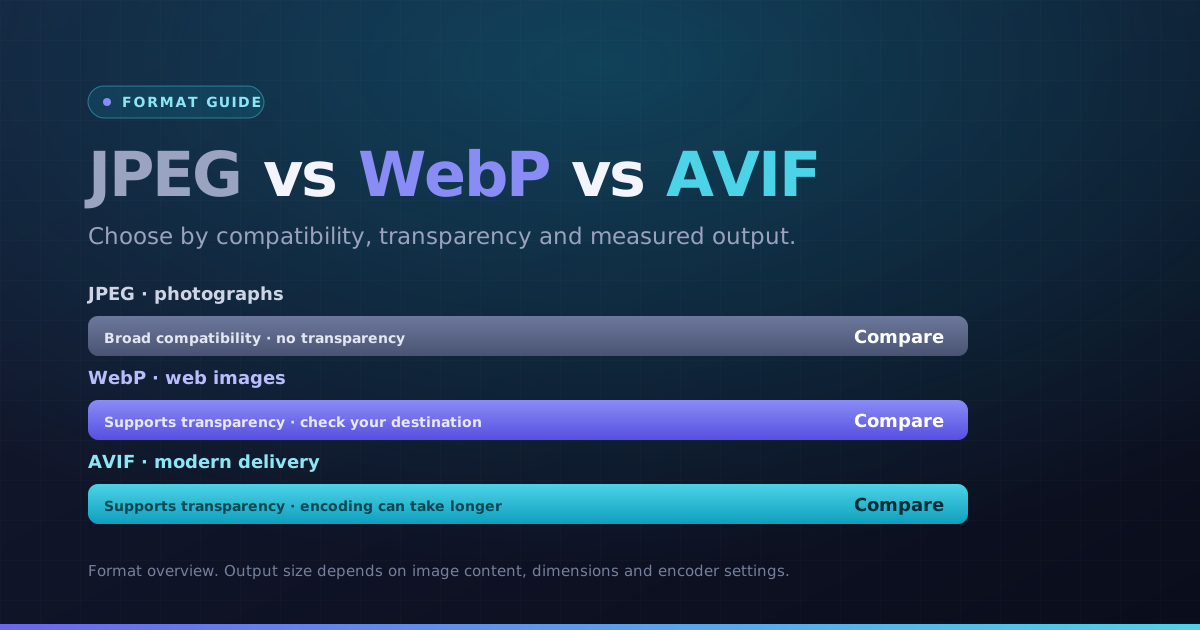 Formats · 3 min readWebP vs AVIF vs JPEG: Choose by Image and DestinationChoose a format for the actual photo, graphic and destination. Compare bytes and visible detail instead of assuming the newest format always wins.Updated October 8, 2026
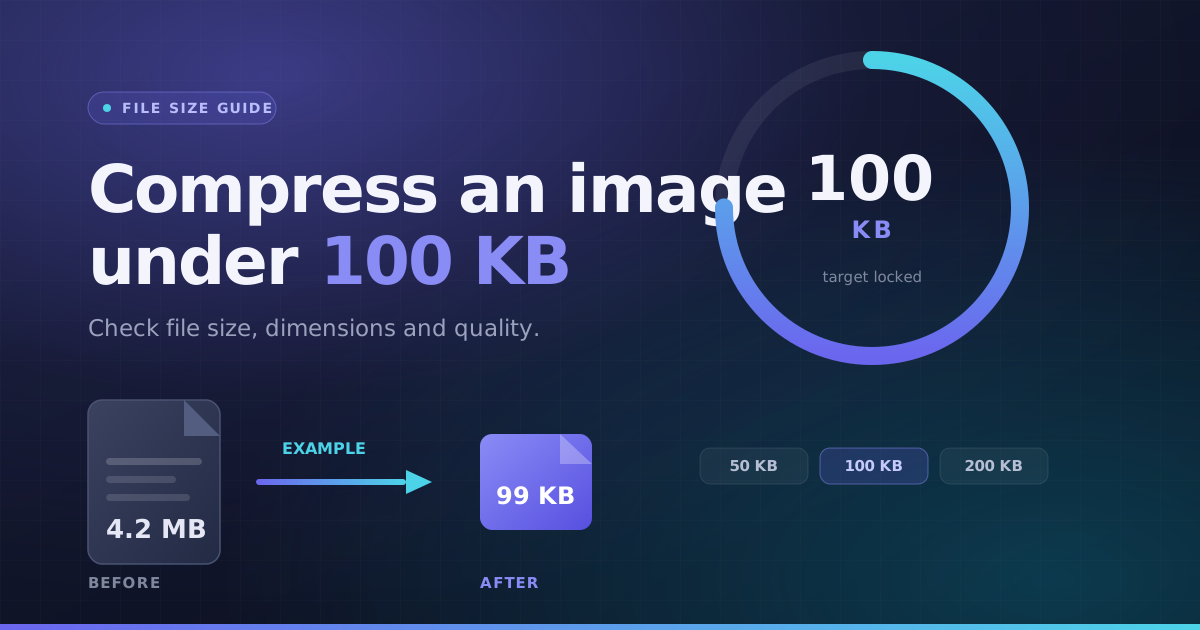 File Size · 3 min readHow to Compress an Image Under 100KBA practical way to handle a photo-size limit: check the full requirements, choose a suitable format, then inspect the actual output instead of guessing.Updated October 8, 2026