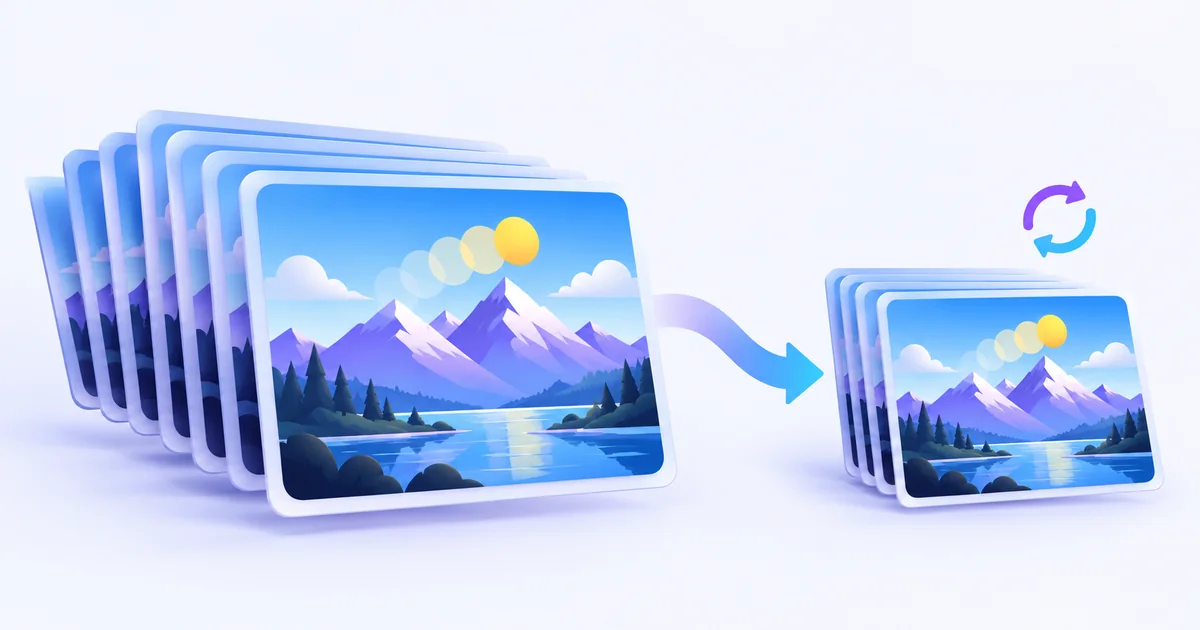
To make a GIF smaller, open the free GIF compressor, choose your animation and compare the output. To shrink GIF file size further, try a smaller scale or a stronger compression level. Keep the original and check the moving preview before downloading. You can reduce animated GIF file size while keeping motion, but lossy compression can change colors and fine detail.
How to reduce GIF file size in four steps
- 1Choose your existing .gif file in ImageFinch. The tool reads its dimensions and frames, then starts with Balanced compression at 100% scale.
- 2Compare the original and compressed previews. Read the actual output file size; a successful run is not a guarantee it meets your upload limit.
- 3If necessary, try another compression level or 75% / 50% scale. Each choice processes the selected original again. Let it finish before changing another setting.
- 4Watch the loop, inspect text and edges, then select Download GIF. Open the downloaded copy and check it before uploading.
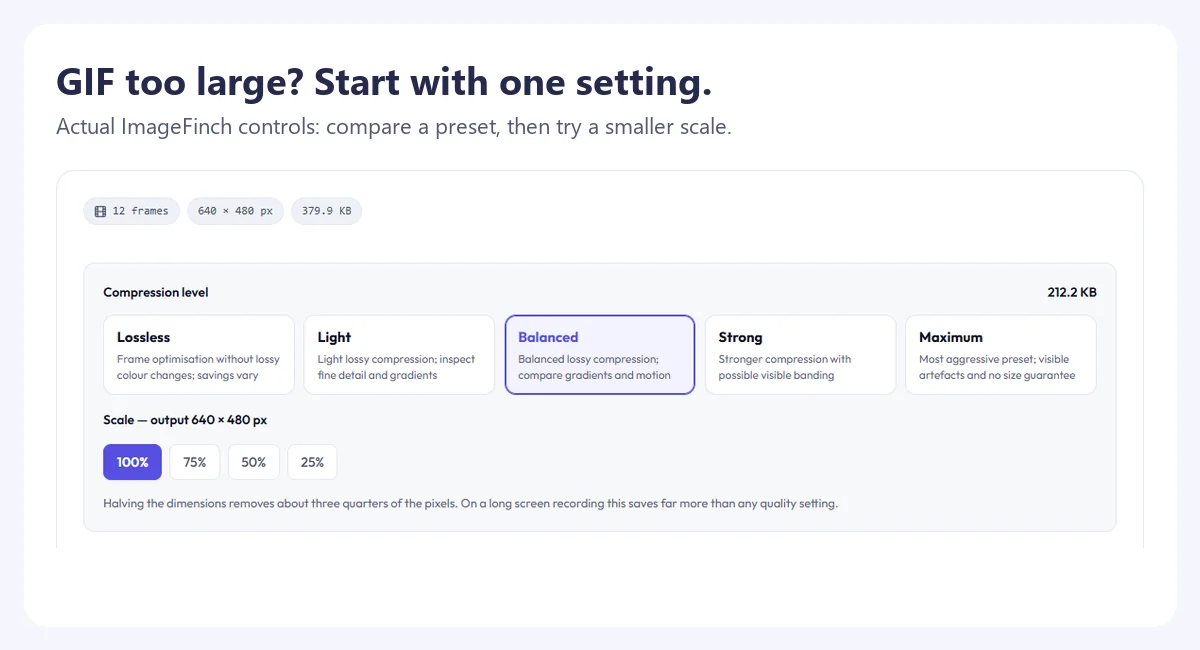
This workflow is for compressing an already existing GIF. You do not need to convert it from MP4 first. Files are processed on your device, so there is no image upload to a processing server. Keep the tab open until the result is ready; long animations can take more memory and time, particularly on a phone.
File size and GIF dimensions are different
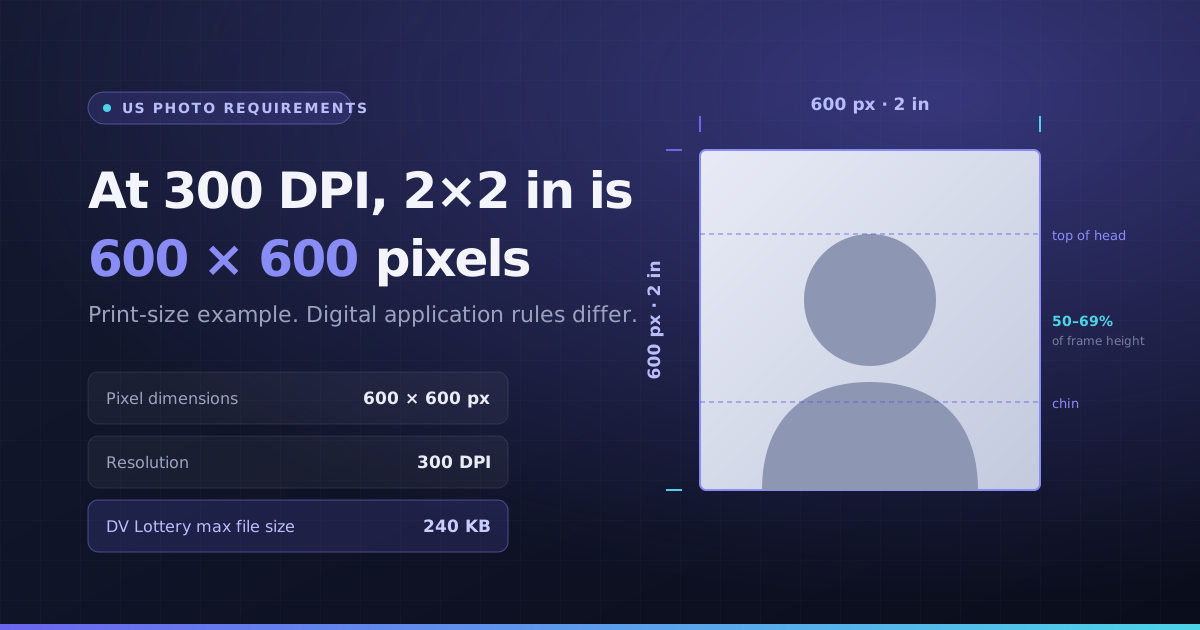
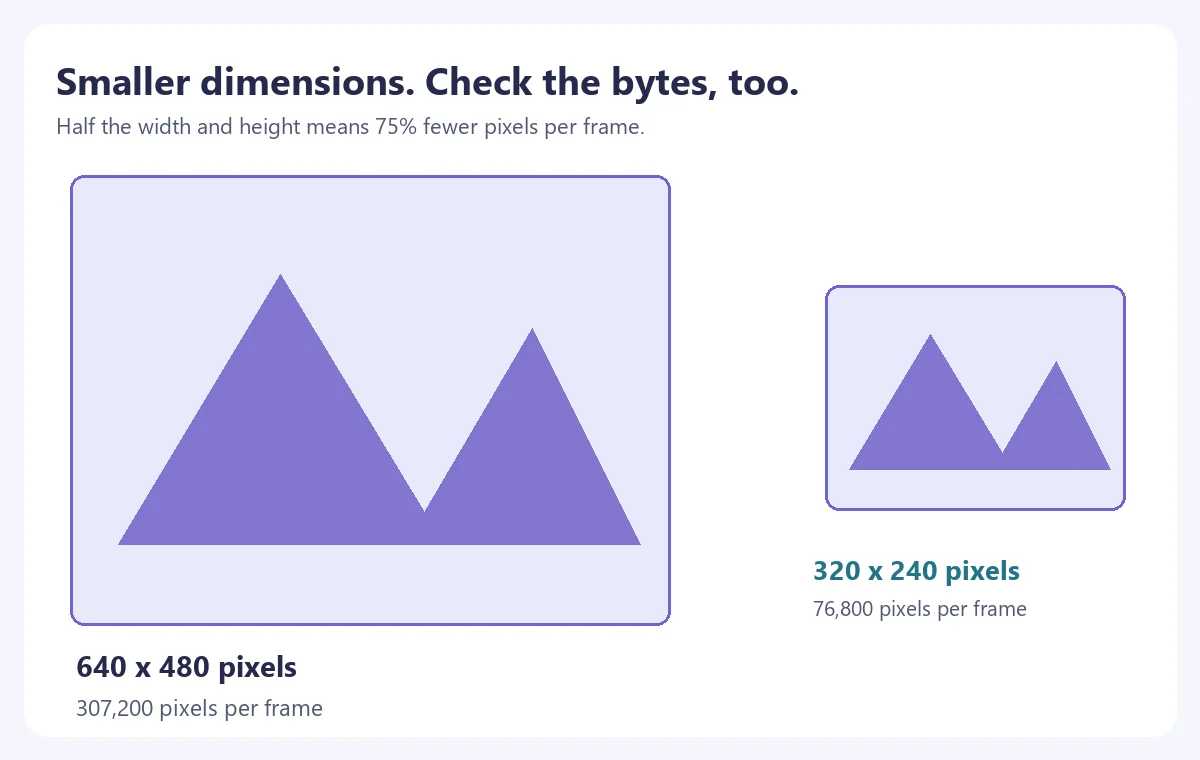
File size is the number of bytes in the saved file, often displayed as KB or MB. GIF dimensions are its width and height in pixels. A form can reject a GIF that is small enough in bytes but too wide, or the reverse. Read both requirements instead of treating “size” as a single setting.
Dimension scaling preserves the aspect ratio here: 50% scale changes a 640 × 480 animation to 320 × 240. That is 75% fewer pixels per frame. It does not guarantee 75% fewer file bytes; motion, color palettes, frame optimization and existing encoding also affect the result. Do not enlarge a small GIF to fix a file-size problem.
Which compression setting should you choose?
| Your GIF | Try first | Check before saving |
|---|---|---|
| Small text or interface demo | Lossless or Light; 100% scale | Can you still read labels at the final display size? |
| Simple transparent animation | Lossless, then Light | Clean edges, transparent background and looping |
| Colorful animation or video-style GIF | Balanced; 100% scale | Gradients, skin-like colors and moving edges |
| File still over the limit | 75% or 50% scale; stronger preset if needed | Bytes, dimensions and useful visual quality together |
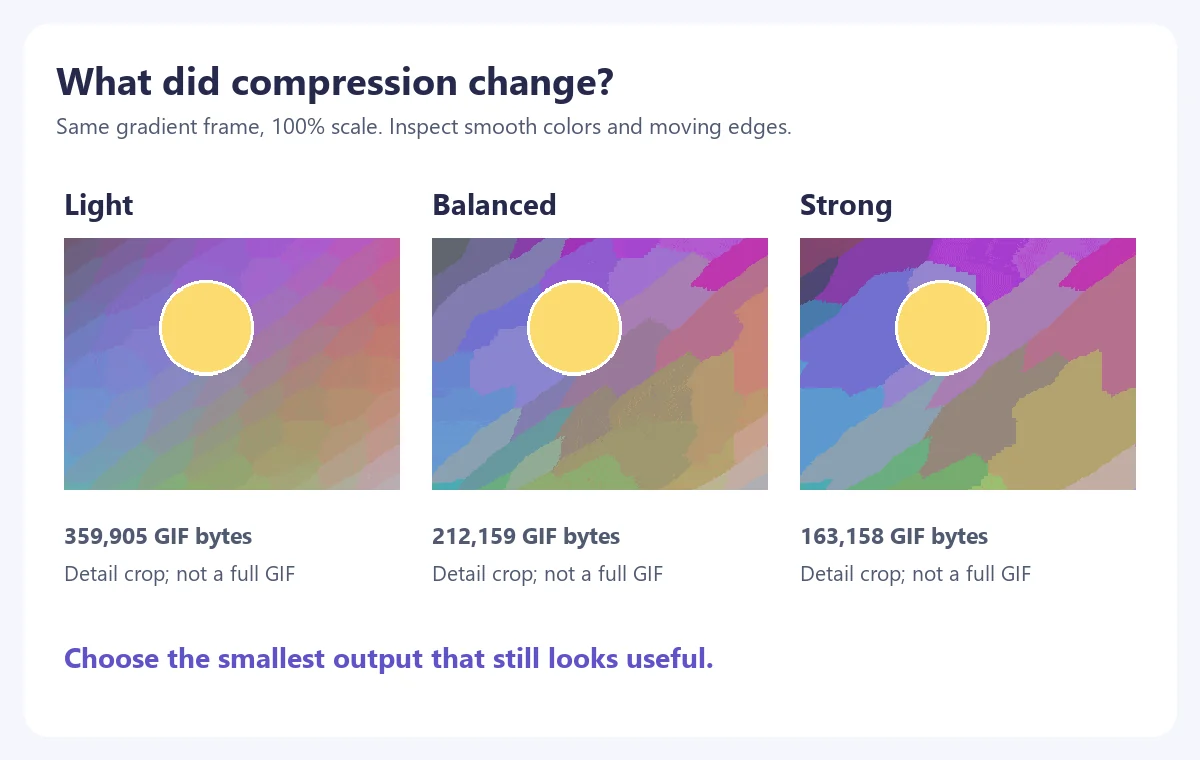
Lossless uses frame optimization without the preset’s lossy color changes. Light introduces a smaller lossy adjustment. Balanced also reduces the color palette; Strong and Maximum make more aggressive changes. A higher compression level is not a universal quality percentage and cannot promise a particular file size.
Use the animated GIF optimizer to compare these presets on your own file. A short flat-color loop and a busy screen recording can respond very differently. Stop when the result meets the destination’s rules and still looks useful—not automatically at Maximum.
Real comparisons: bytes, detail and animation
We created three synthetic 640 × 480 examples for this guide: a transparent moving shape, a text-and-progress demo, and a colorful gradient loop. Each original has 12 frames, 80 ms per frame, a 0.96-second duration and infinite looping. These are controlled illustrations, not private user photos or a claim about all GIFs.
| Original example | Input bytes | Preset / scale | Output bytes | Output dimensions |
|---|---|---|---|---|
| Transparent loop | 18,698 | Lossless / 100% | 5,299 | 640 × 480 |
| Transparent loop | 18,698 | Balanced / 100% | 5,299 | 640 × 480 |
| Transparent loop | 18,698 | Balanced / 50% | 2,525 | 320 × 240 |
| Text demo | 165,783 | Lossless / 100% | 29,111 | 640 × 480 |
| Text demo | 165,783 | Balanced / 100% | 18,591 | 640 × 480 |
| Text demo | 165,783 | Balanced / 50% | 10,884 | 320 × 240 |
| Gradient loop | 379,894 | Lossless / 100% | 379,856 | 640 × 480 |
| Gradient loop | 379,894 | Balanced / 100% | 212,159 | 640 × 480 |
| Gradient loop | 379,894 | Balanced / 50% | 95,084 | 320 × 240 |
Every run above starts from the original. Byte counts are measured outputs from the same ImageFinch processing pipeline used by the tool. We also inspect individual frames, total duration, looping and transparency. File sizes alone cannot tell you whether text became blurry or animation broke. An already optimized GIF may barely shrink or may grow after re-encoding.
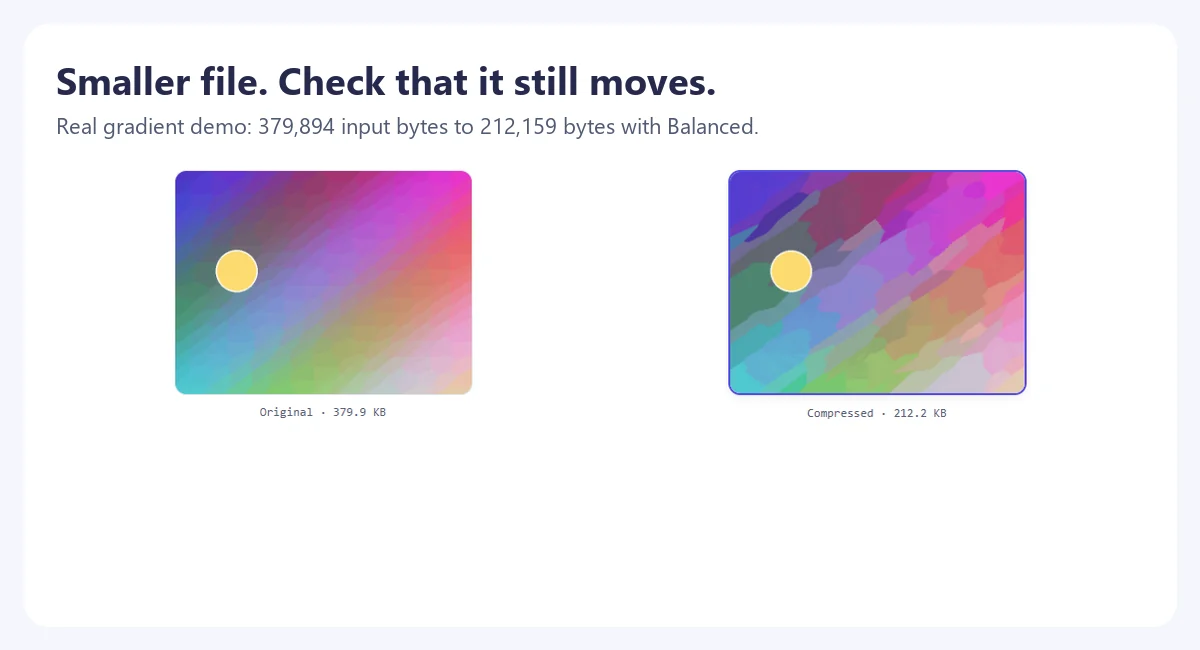
See the motion, not just the numbers
Load the original and Balanced animations side by side. These lossless WebP previews show decoded GIF frames; byte counts in the table refer to the GIF files. They start on demand and may play out of sync.
Can you compress a GIF without losing quality?
Sometimes lossless optimization can make a GIF smaller without changing the displayed pixels, but savings vary. Keeping the animation does not mean keeping identical image quality. Lossy compression, color reduction and resizing can change what you see. Keep the original so you can return to it if the smaller copy is unsuitable.
A GIF color table can contain up to 256 entries. Reducing colors can create banding in a smooth gradient. Dithering approximates colors with a pattern of pixels and can add noise. Inspect the output at the size people will actually see it, then zoom into important text or edges. Smaller is only better when the content still does its job.
LZW encoding itself is lossless; a lossy GIF optimization can change pixel values before they are encoded. Other editors may offer frame-rate reduction, duplicate-frame removal, trimming or transparency optimization. Those options can help, but dropping frames needs careful timing adjustment. ImageFinch’s current GIF controls are presets and scale percentage; there is no trimming or frame-drop control.
Still too large for Discord, email or an upload form?
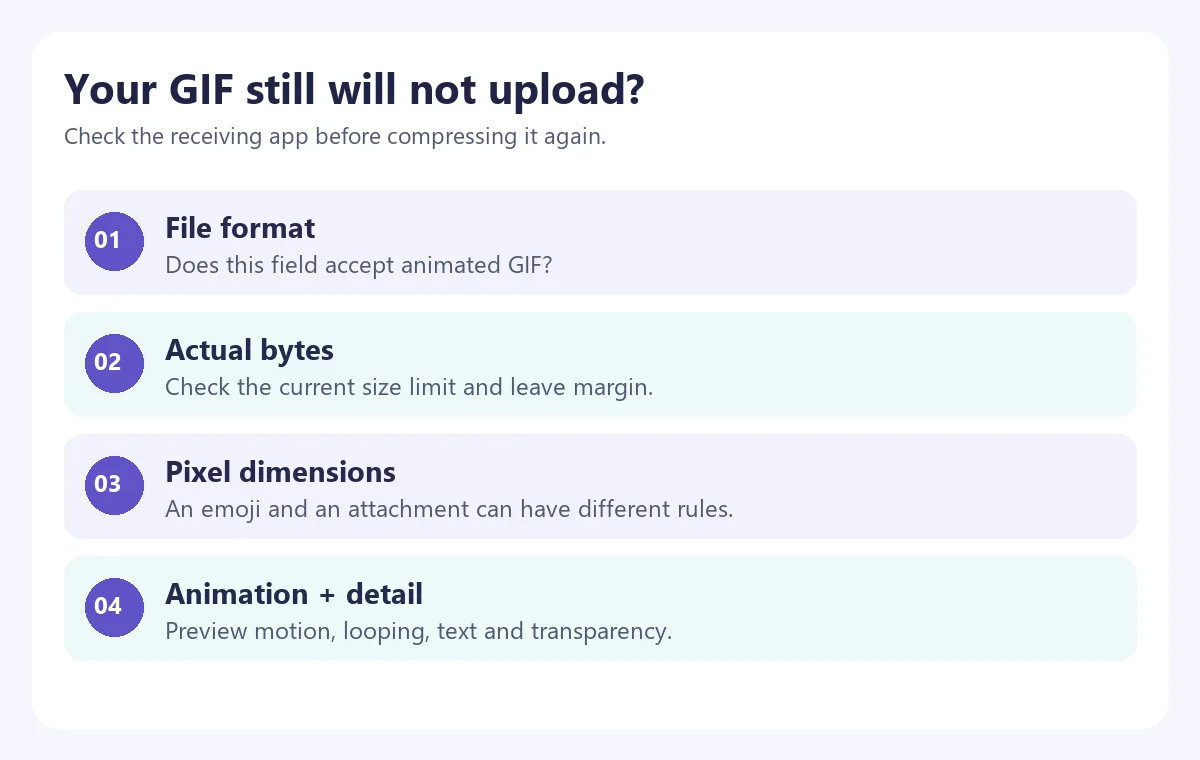
Looking for a GIF compressor for Discord? First identify the exact field: a custom emoji, a sticker and a message attachment are different tasks. The permitted file format, current byte limit and dimensions can also depend on the account or service. Use the receiving app’s current instructions; a limit quoted in an old tutorial might not apply to your upload.
Need to compress a GIF to 1MB or a smaller KB limit?
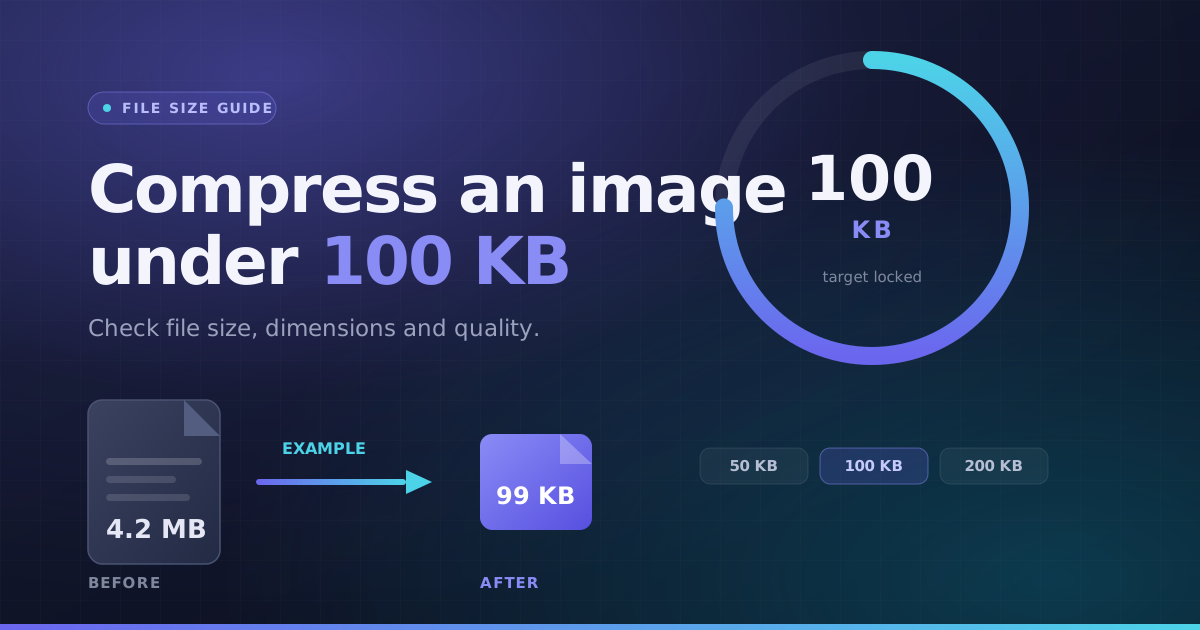
Use the stated limit as a ceiling, not a requirement to produce exactly that number of bytes. Whether you need to compress a GIF to 100KB, 200KB, 256KB or 512KB, the process is the same: compare actual output bytes, try a smaller scale or stronger preset, and keep only an acceptable result. Leave a margin because KB rounding and decimal/binary units can differ between tools and services.
There is no guaranteed target-size mode in this GIF tool. A request to compress a GIF to a specific size may be impossible at useful dimensions and quality. If a 1MB target ruins the animation, shorten the source in a GIF-aware editor or recreate a smaller export, then try again. Do not use the still-image target-size compressor for an animated GIF.
Want to reduce GIF size for email or a website?
An attachment ceiling and a sensible page-loading budget are different things. An animation may fit an email provider’s attachment limit yet remain too heavy for an embedded newsletter or mobile page. Use only the detail and display dimensions the reader needs. For a website, a static preview with an optional play/open action can prevent a large animation from loading immediately.
For a 3MB or 10MB upload ceiling, compare the exported bytes with that ceiling just as you would for 1MB. Those numbers are example user targets, not a statement about a particular platform’s current rules. If compression makes the file larger, return to the original and try a different preset or dimension scale.
Make a GIF smaller on iPhone, Android or a computer
Open ImageFinch in your browser, choose the saved .gif file and let compression finish. On a phone, you may need the device’s file picker to select the actual GIF rather than a still preview or a video copy. Compare the moving result, tap Download GIF and locate it in your browser’s downloads or the device’s Files app. The save destination varies by browser and settings.
On Windows or Mac, choose the file from your computer and use the same controls. After downloading, open the saved GIF in a browser or another animation-capable viewer. If a photo viewer shows only one frame, that alone does not prove the file lost its animation. Check in a viewer that plays GIFs before recompressing it.
For a long, high-resolution animation on mobile, start with a smaller source or work on a computer with more available memory. Keep the processing tab open and avoid switching settings repeatedly while a run is active. This tool processes one GIF at a time; it does not batch-compress a folder of GIFs.
Why did the GIF stop moving or look different?
- A still-image workflow was used: ordinary canvas-based converters can draw only one frame. Use the dedicated GIF compressor for animation.
- The viewer does not play GIFs: open the downloaded file in a browser before assuming it is broken.
- Detail changed: compare a lighter preset or the original dimensions; heavy compression can smear edges and band gradients.
- The loop or background looks wrong: inspect more than the first frame, including transparent edges, the end-to-start transition and original frame timing.
- The upload app converted the file: compare the local downloaded GIF with the copy shown by the destination.
Should you use MP4 or animated WebP instead?
If the destination accepts video or animated WebP, another format may be worth testing for a long, colorful animation. Compatibility comes first: a field requiring GIF will not be satisfied by renaming an MP4 or WebP file. ImageFinch currently does not provide GIF-to-MP4 or animated-GIF-to-WebP conversion. Its general image converter is for still images, so do not use it to preserve this animation.
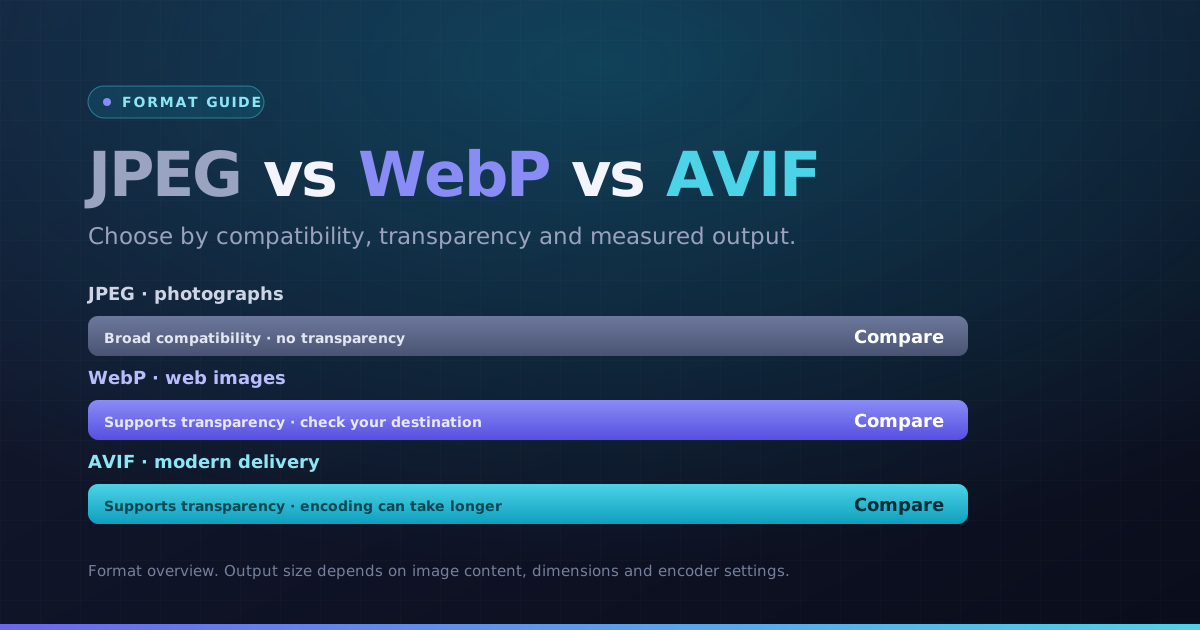
Working with a separate still image? The WebP, AVIF and JPEG guide explains format trade-offs, while the 100KB upload checklist covers byte limits and dimensions for still-image forms. Keep those workflows separate from animated GIF compression.
Your final GIF checklist
Technical references
- Gifsicle manual: optimization, resizing and animation controls
- MDN: image formats and GIF color tables