A selfie looks backwards, the writing on a shirt is reversed, or a person in your picture is facing away from the rest of your design. You want to change the direction and get on with your day.
To flip a photo, open it in an editor, choose a horizontal or vertical flip, check the preview, and save the finished image. A horizontal flip swaps left and right. A vertical flip swaps top and bottom. Neither changes the picture's pixel width or height.
You can use the photo app already on your device or a browser tool. Below, you'll learn how to flip a picture, pick the right direction, and save a copy that looks the way you want.
Choose your image, check the direction, and download the result.
The quick answer
- Mirror a selfie or swap left and right: choose Flip Horizontal.
- Exchange the top and bottom: choose Flip Vertical.
- Fix a sideways picture: rotate it instead of flipping it.
- Keep an untouched original, and open the saved result before sharing.
How to flip an image online without installing an app
A browser-based image flipper is useful when you switch devices or cannot find the right control in your photo app. ImageFinch's free image flipper provides separate horizontal and vertical buttons, a preview, and a download action.
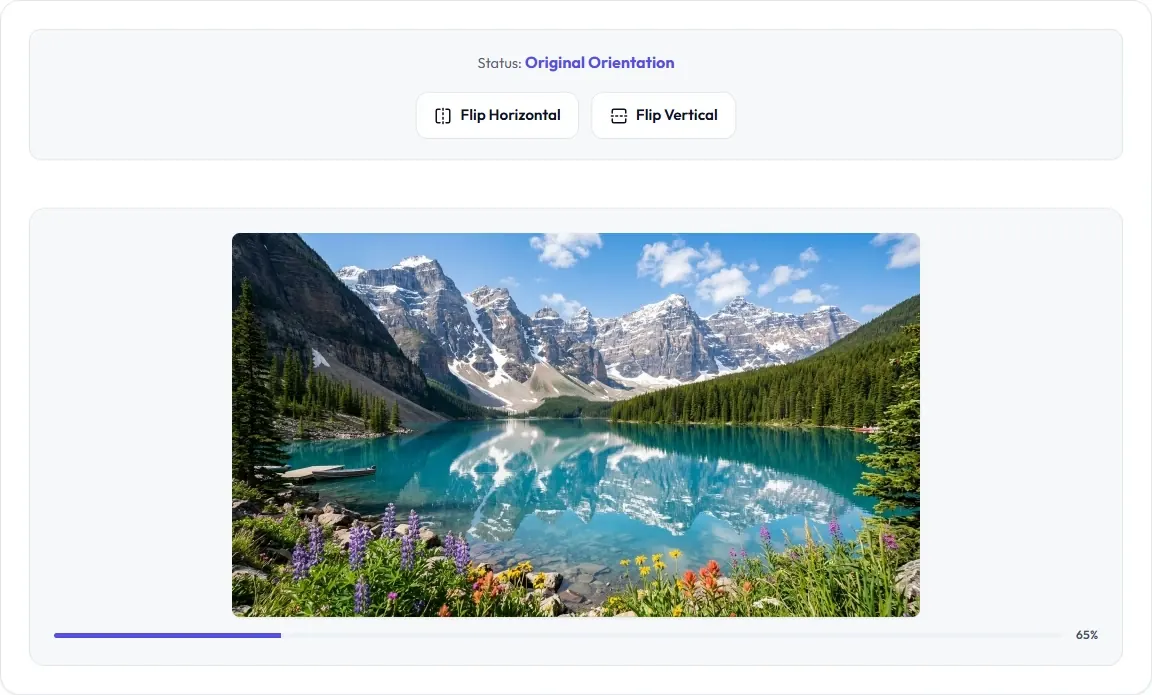
- 1Open the Image Flipper and choose a still image from your device. Start with a file you can already open normally.
- 2Select Flip Horizontal to mirror the picture from left to right, or Flip Vertical to reflect it from top to bottom.
- 3Wait for the preview and result to finish updating. Check the orientation status above the image.
- 4Look closely at writing, logos, faces, and objects that should be on a particular side.
- 5Choose Download Flipped Image. Open the downloaded copy and confirm that the intended change is present.
- 6To work on a different file, use Choose Another after processing finishes.
The image flip tool makes a new copy with your chosen flip. Click the same button again to turn that flip off. Choose both directions and the picture looks as if you rotated it 180 degrees. To fix a sideways photo, use a 90-degree rotation instead.
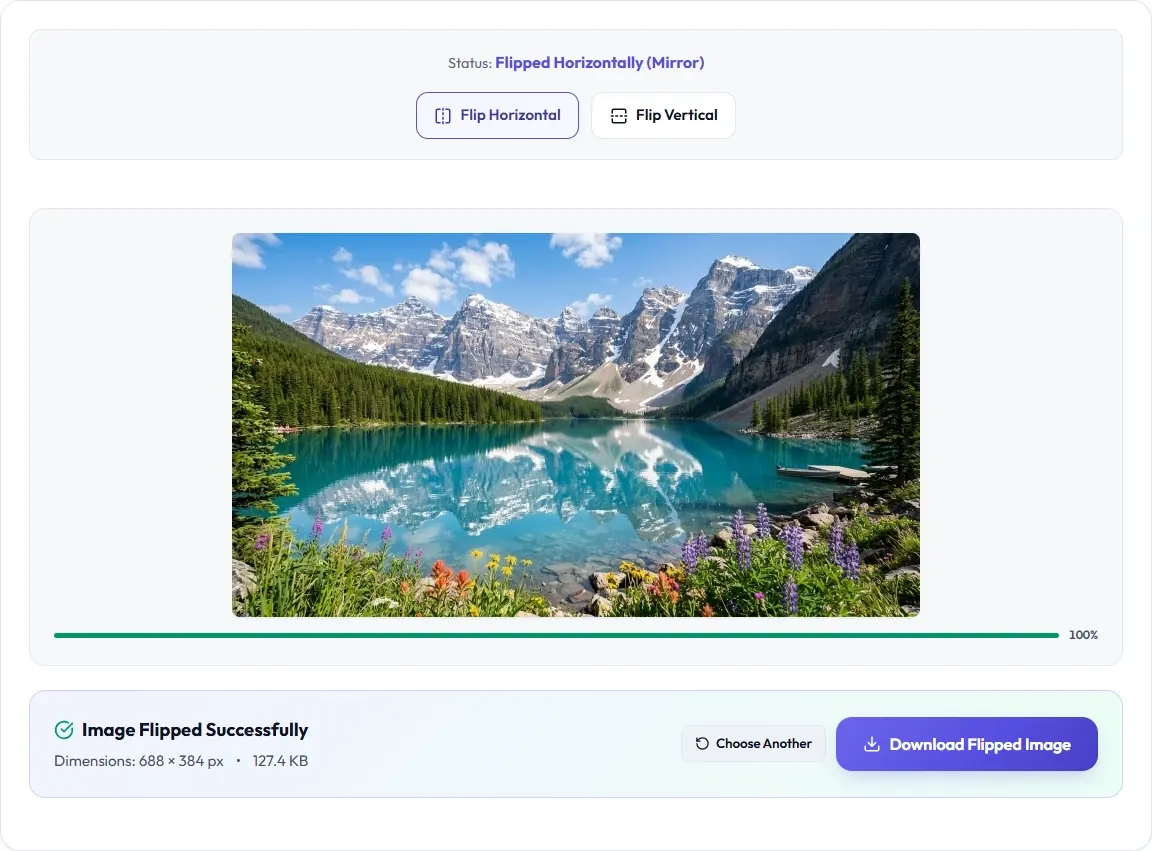
You can flip an image online on your phone, tablet, or computer. ImageFinch does the photo editing in your browser, so your selected photo isn't sent to a server for flipping. Loading the website and its other resources still uses the internet.
Horizontal or vertical: which flip do you need?
Not sure which direction changed? Look for something that is different on each side, such as a word, an arrow, or a mug handle. A plain circle won't make the change easy to spot.
| Action | What moves | A useful reason to choose it |
|---|---|---|
| Horizontal flip | The left side becomes the right side | Correct mirrored lettering or change which way a subject faces |
| Vertical flip | The top becomes the bottom | Create a top-to-bottom reflection |
| Rotate 90 degrees | The whole frame makes a quarter-turn | Correct a sideways picture |
| Rotate 180 degrees | Both top/bottom and left/right change | Turn an upside-down picture around |
| Crop or resize | The frame or pixel dimensions change | Fit a different shape or required width and height |
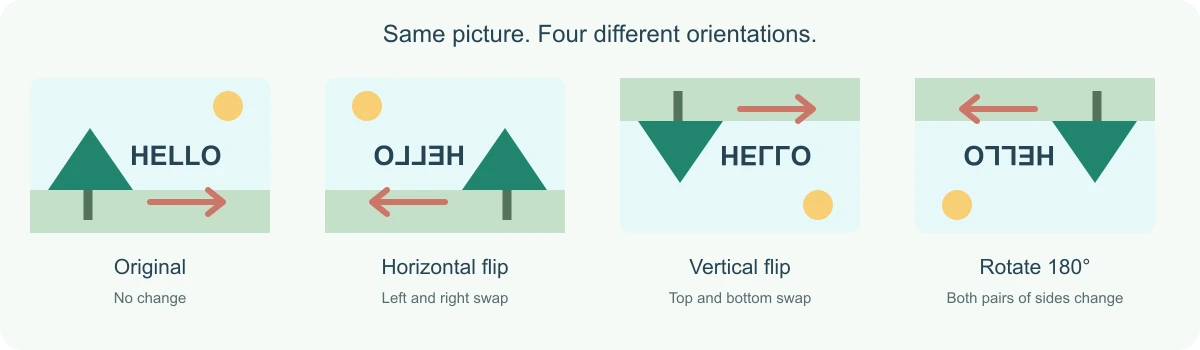
To flip an image horizontally, imagine swapping its left and right edges. To flip an image vertically, imagine exchanging its top and bottom edges. A vertical flip alone is different from rotating the image 180 degrees.
How to mirror an image online
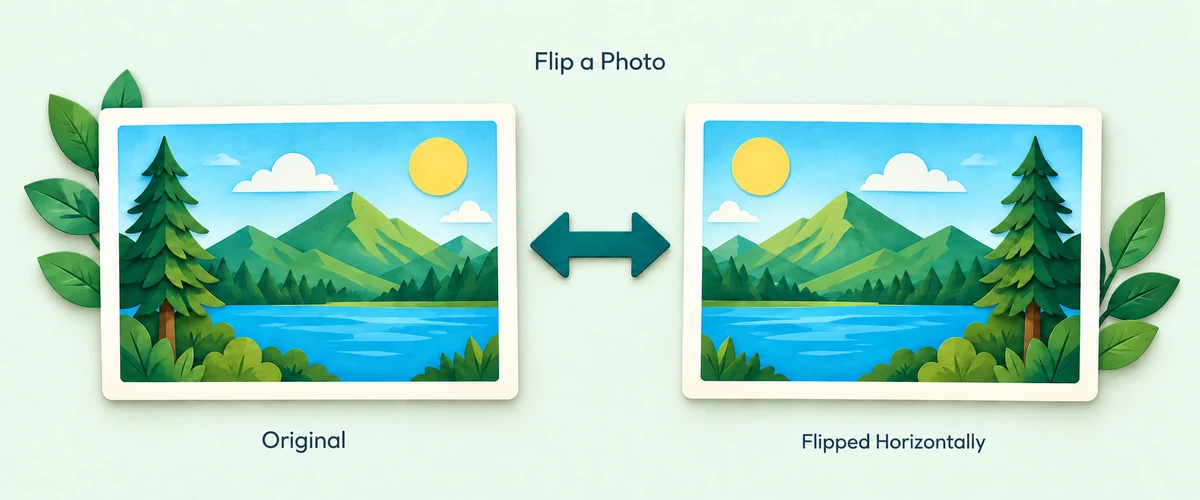
Want the usual mirror image online? Choose a horizontal flip. Your subject moves to the opposite side while the photo keeps its width and height. This is the option to use when you want to mirror or flip an image for a design or fix a selfie that is already mirrored.
For example, a tree on the left moves to the right, and a sun on the right moves to the left. Any writing is reflected too. If the word HELLO starts out readable, a horizontal mirror makes it backwards. If it was already backwards because the whole photo was mirrored, the same operation can restore its reading direction.
You can flip a photo online and leave its size and shape alone. Crop or resize it only if you also need a different frame, width, or height. Prefer using your phone's photo app? The next sections show you where to start.
How to flip a picture on iPhone
To flip a photo on iPhone, start with the Photos app if all you need is a horizontal mirror:
- 1Open Photos and select the picture.
- 2Tap Edit, then open Crop.
- 3Tap the Flip control to exchange left and right.
- 4Inspect the result and tap Done when it looks right.
If you were wondering how to mirror an image on iPhone, this left-to-right change is the same task. Apple's iPhone cropping and flipping guide documents the horizontal flip control.
Duplicate the photo before editing if you want both versions readily available. With iCloud Photos enabled, edits can sync across devices. Keep that in mind when comparing the edited picture on a second screen.
Need to flip top and bottom instead? Use ImageFinch's Flip Vertical button in your browser. There is no extra app to install.
How to flip a photo on Android
In Google Photos on Android, open your picture, tap Edit, find the Crop controls, and select the flip or mirror icon. Review the change, then use the available save option. Choose Save copy if it is offered and you want a separate version.
Google's Android photo-editing help describes the crop and flip controls. The layout and labels can vary as the app changes, and a phone maker's Gallery app may arrange its tools differently.
Can't find the right button in your phone's editor? You can flip an image on Android in your browser instead. Open ImageFinch, choose your photo, then select Flip Horizontal or Flip Vertical.
If the downloaded photo is missing from your gallery, check the browser's downloads list and the phone's Files or Downloads app. A completed browser download does not always appear immediately in the photo library.
How to flip an image on Windows 11 without Photoshop
You can flip an image without Photoshop using Microsoft Photos or the browser method. In Photos:
- 1Open the picture in Photos.
- 2Select Edit image. Microsoft also documents Ctrl + E for opening the editor.
- 3Open the Crop editing controls and choose the horizontal or vertical flip you need.
- 4Check the preview, then use the save option shown in your version of Photos.
Microsoft's Windows photo-editing guide shows both flip directions. Your installed version may arrange the controls differently.
If you prefer using your browser on Windows, follow the ImageFinch steps above. You only need to choose the photo, pick a direction, and download the copy.
Flip a picture on Mac or Chromebook
On a Mac, open the image in Preview, then choose Tools → Flip Horizontal or Tools → Flip Vertical. Apple's Preview guide documents these commands. Start with a duplicate if you want to preserve an untouched working copy.
On a Chromebook, use the browser steps above. The same method also works when you switch between computers and want familiar controls.
How to flip a mirror-image selfie and fix backwards text
To unmirror a selfie that has already been reflected, apply one horizontal flip. Use a clear clue, such as a word on a shirt or a sign, to decide which version you want. A face alone can be harder to judge because you are used to seeing it in a mirror.
Check the saved photo first. The camera's live preview and the file it saves can use different orientations, depending on the camera app and settings. Do not flip a correctly saved image just because the preview looked different.
A flip changes everything in the picture. If one sign has backwards text and another reads correctly, flipping the photo will reverse both. To change just one part, use an editor that lets you select and edit that area.
For a portrait, keep whichever version you prefer. For a product photo, make sure logos and details still match the real item. A flip can move a pocket, button, or label to the wrong side.
Do you need a photo flip app or mirror image app?
A photo flipper might be part of your phone's photo editor, a separate app, or a browser tool. For a simple left-to-right change, you may already have everything you need. There's no need to install a photo flip app if your current editor does the job.
Use your phone's editor if its flip button is easy to find. Try a browser tool if you want the same controls on different devices or need a direction your app doesn't offer. If you're considering a mirror image app for extra features, check that it has the ones you actually need.
In ImageFinch, work on one still photo at a time. If you need to edit a moving image or several photos together, choose a tool that supports that job.
What happens to image size and quality after flipping?
Flipping changes where the pixels sit, not how much detail the photo contains. It doesn't make the picture sharper or guarantee a smaller file. Even when the width and height stay the same, the saved file can take up more or less space.
Saving a new JPEG can slightly change fine detail. The saved copy may also keep different photo information, such as camera details. Zoom in on small text, edges, and smooth areas of color to check how your copy looks.
If your image has a transparent background, check that it is still transparent after saving. The file type matters: for example, JPG cannot keep transparency.
Need to try again? Start from your original photo rather than saving the same JPEG over and over. This helps avoid small quality changes building up with each save.
Need rotation, cropping, or a smaller file instead?
If you need to rotate an image online because it is sideways, open the Image Rotator. Choose a quarter-turn rather than trying horizontal and vertical flips at random.
Flipping does not change a portrait frame into a landscape frame. A 90-degree rotation swaps width and height but also turns the whole scene. If you need a wider composition while keeping the subject upright, use the Image Cropper and check what gets cut away.
For different pixel dimensions, use the Image Resizer. For an upload limit measured in KB, use the Image Compressor or an appropriate target-size tool. An orientation change by itself does not guarantee that an upload form will accept the file.
When the flipped result is not what you expected
| What happened | What to check | What to try |
|---|---|---|
| Readable text became backwards | Was the original already correct? | Return to the original or toggle the horizontal flip off |
| The picture is still sideways | Did you reflect it instead of turning it? | Use a 90-degree rotation |
| Everything is reflected top to bottom | Was the vertical direction selected? | Use horizontal only if you wanted a familiar mirror effect |
| The picture returned to its first direction | Was the same flip button selected twice? | Check the current orientation status and preview |
| The saved file looks unchanged | Did you open the original or an older download? | Download again and check the new filename and preview |
| The result is missing from the gallery | Did the browser save it in Downloads? | Open the browser's downloads list or the device's Files app |
| The file will not open | Does the source open normally in another viewer? | Try a valid still image in a supported format; do not just rename its extension |
| A form still rejects the picture | Does it also require a particular format, size, or crop? | Check those requirements separately |
Inspect the saved result before you share it.