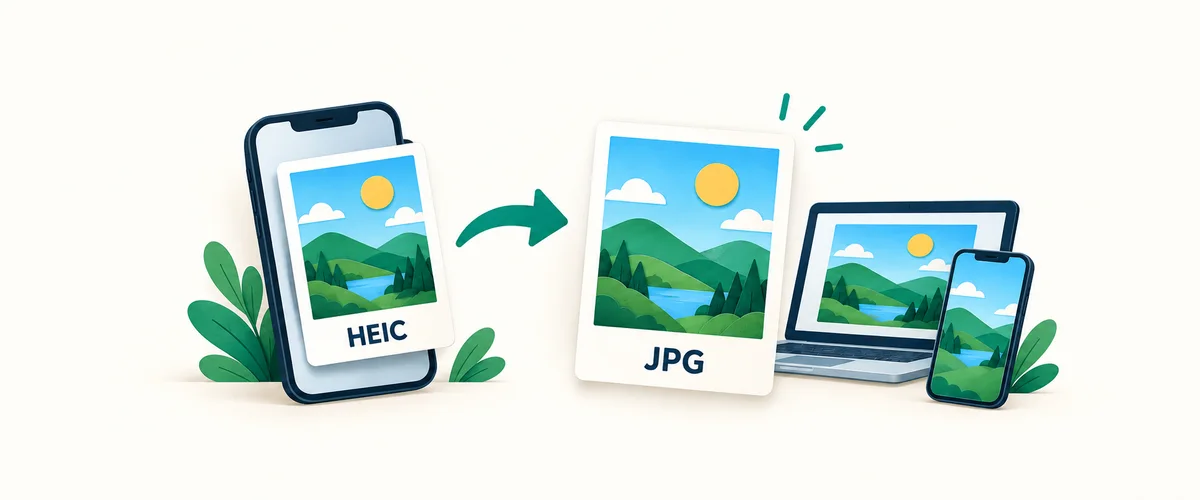
To convert AVIF to JPG, select your saved AVIF in a converter, choose JPG output and download the finished copy. Open that JPG in the app or form that needs it. ImageFinch runs the conversion in your browser, so the image stays on your device.
Our three-file test had a useful surprise: at quality 90, the photo became slightly smaller, but the transparent graphic and text board became larger. Getting a JPEG that opens where you need it matters more than assuming conversion will save space. Below, you can follow the steps, inspect those results and download the test files yourself.
Choose the saved image, start with quality 90, then inspect and download the result.
- JPG and JPEG refer to the same image format.
- Changing .avif to .jpg in a filename does not convert the file.
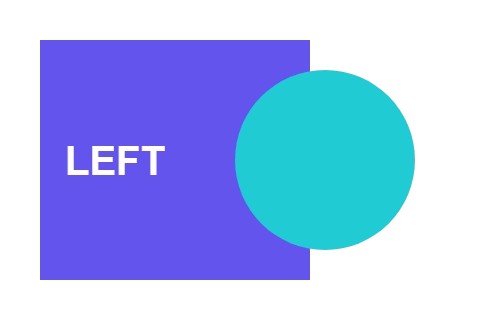
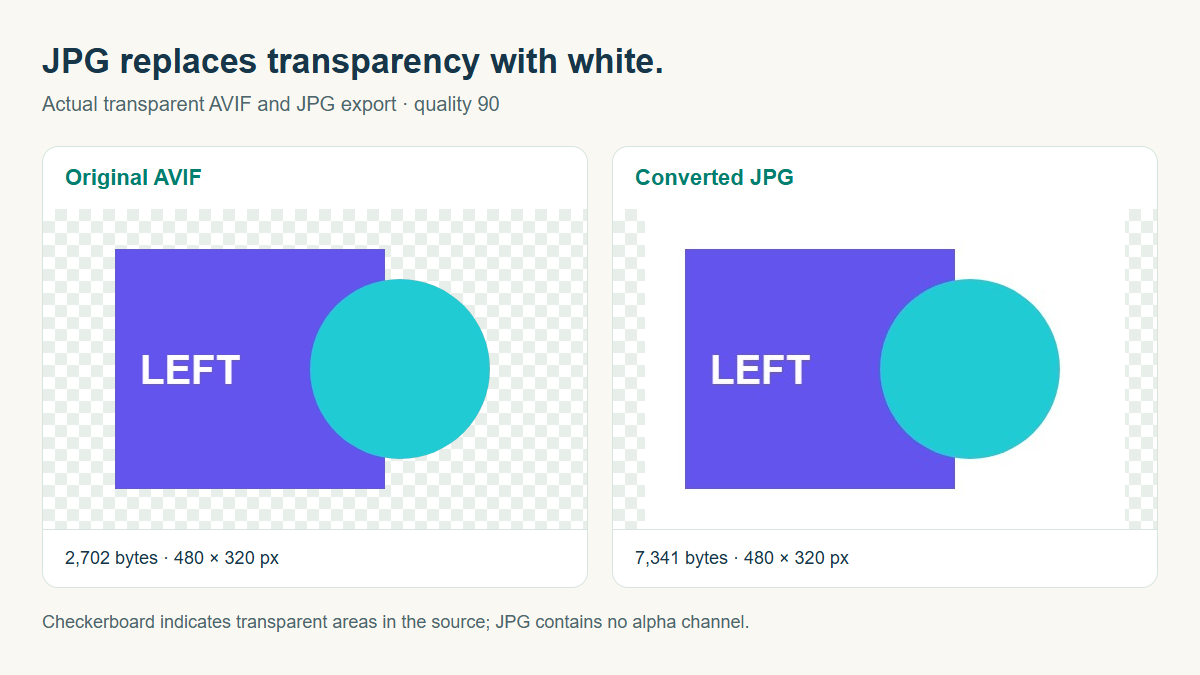
- JPG cannot preserve transparent pixels; this tool fills them with white.
- Conversion can increase file size. Keep the AVIF original.
Convert an AVIF image to JPG: the quick steps
- 1Open the AVIF to JPG converter and choose the actual .avif file from your device. Wait for the image to finish loading.
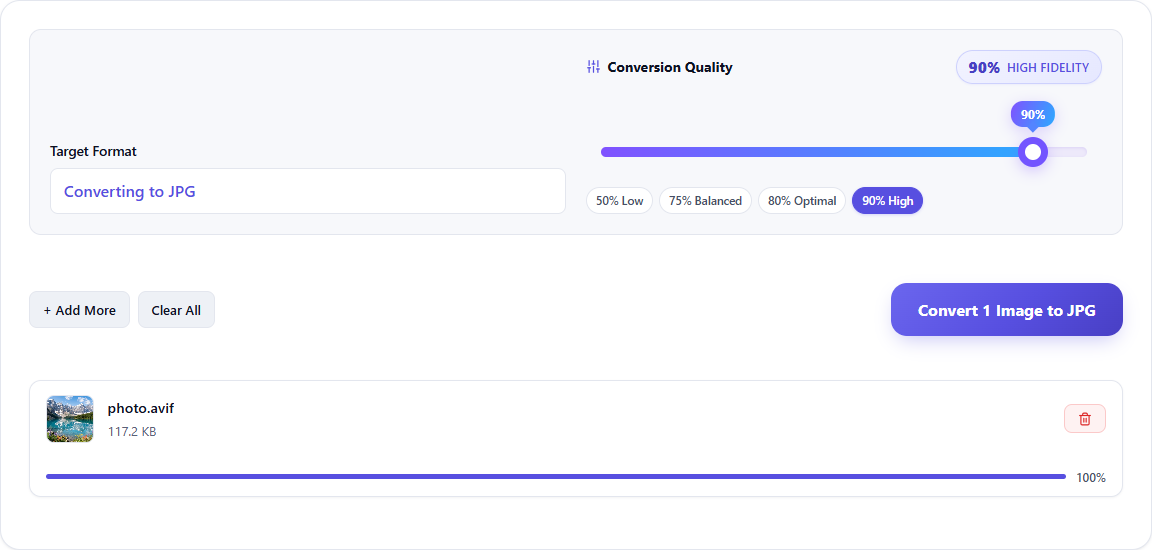
- 2The output is already fixed to JPG on this page. Start with the default Conversion Quality of 90.
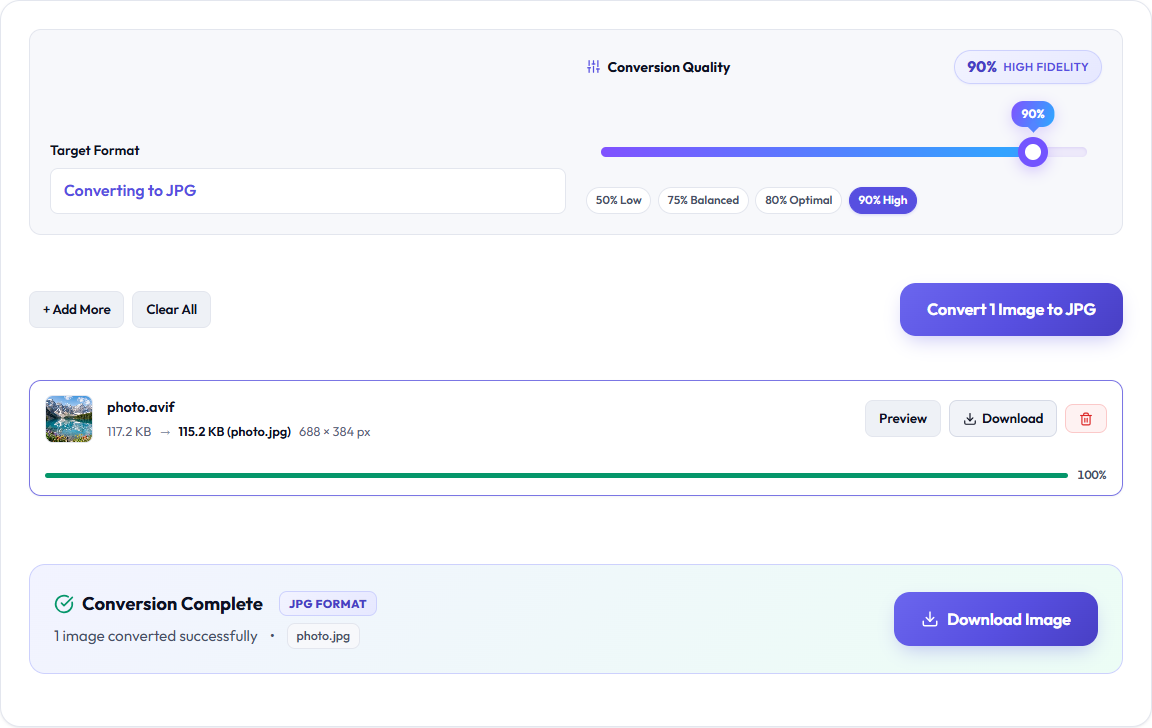
- 3Select Convert 1 Image to JPG. Read the result size and pixel dimensions, and use Preview to inspect the JPG.
- 4Select Download Image, locate the saved .jpg file and open it in the application or upload form that needs it.
Check the receiving service before converting. It may require JPEG, a maximum file size and a particular width or height at the same time. Format conversion only solves the format part. If you must submit an unaltered original, follow that service’s instructions instead of editing the photo.
Use the browser workflow on your device
The conversion controls are the same across devices. The file picker and download location belong to your browser and operating system, so their wording can vary. The screenshots and measurements in this guide come from desktop Chrome; the phone instructions below describe the general browser workflow, not a device-by-device test.
How to convert AVIF to JPG on Windows
Open the tool in a current browser and select the AVIF from its folder in File Explorer. You can also drag the actual file into the selection area. Convert it, download the JPG, then open the browser’s downloads list to find the saved copy. If the browser asks where to save, choose a folder you can find again.
If a desktop photo viewer cannot open AVIF, the browser workflow can still be worth trying. It needs a browser that can decode that particular source file. A newer browser cannot fix a damaged or incomplete download, so return to the source if the image fails to load.
How to convert AVIF to JPG on Mac
Choose the saved AVIF through the browser’s file picker, or drag it from Finder into the tool. Keep JPG as the output, run conversion and download the new file. Find it through the browser’s downloads list and open the JPG from there. If the receiving app still rejects it, check that you selected the downloaded copy rather than the original in Finder.
How to convert AVIF to JPG on iPhone or iPad
Open the converter in your browser and tap the selection area. For an AVIF saved as a file, use the file-browsing option and locate the original in Files or your saved downloads. A photo-library picker may offer a different representation; select the actual AVIF when you want to convert that file.
After conversion, tap Download Image and check the browser’s downloads interface or the Files app. The destination depends on your browser settings. If you need the JPG in Photos, open the downloaded copy and use the available sharing or save-image action. Keep the tab open until processing finishes.
How to convert AVIF to JPG on Android
Choose the original through the browser’s file picker, convert it and tap Download Image. Look in the browser’s Downloads list or your file manager. If the JPG does not appear in your gallery immediately, find it through Downloads before assuming conversion failed. Open the saved copy and select that file for your next upload.
What changes when AVIF becomes JPG?
An AVIF to JPG converter reads the source image and saves its pixels in JPEG format. In this workflow, width and height stay the same; the quality setting changes how JPEG compresses the image, rather than its dimensions. The original file remains separate. A successful conversion does not mean every feature of the AVIF survives.
| Property | What to expect in this workflow |
|---|---|
| File encoding | A real image/jpeg output with a .jpg filename |
| Pixel dimensions | Same width and height as the decoded source |
| Transparency | Transparent areas are flattened onto white |
| Detail and colors | JPEG can introduce artifacts; HDR and wide-gamut appearance may change |
| Animation and metadata | A still-image copy; do not rely on it to preserve motion or original metadata |
AVIF can hold transparent areas, animation and HDR: a wider range of brightness than an ordinary image. This browser tool makes a still JPG copy. Keep the original if those features matter, and compare the result in the app where you plan to use it.
Real examples: file size and quality after conversion
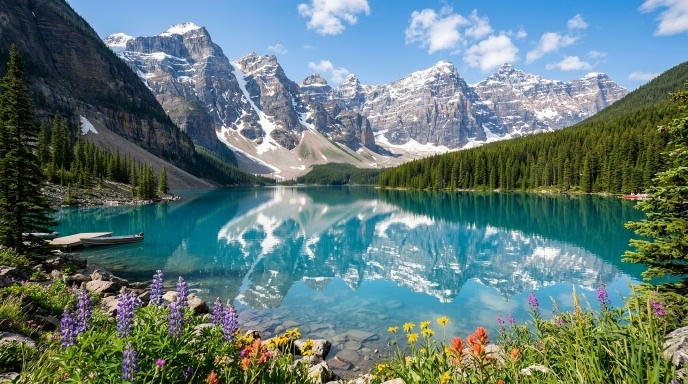
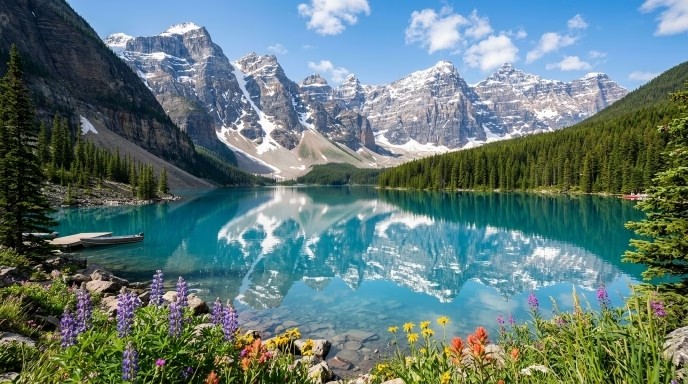
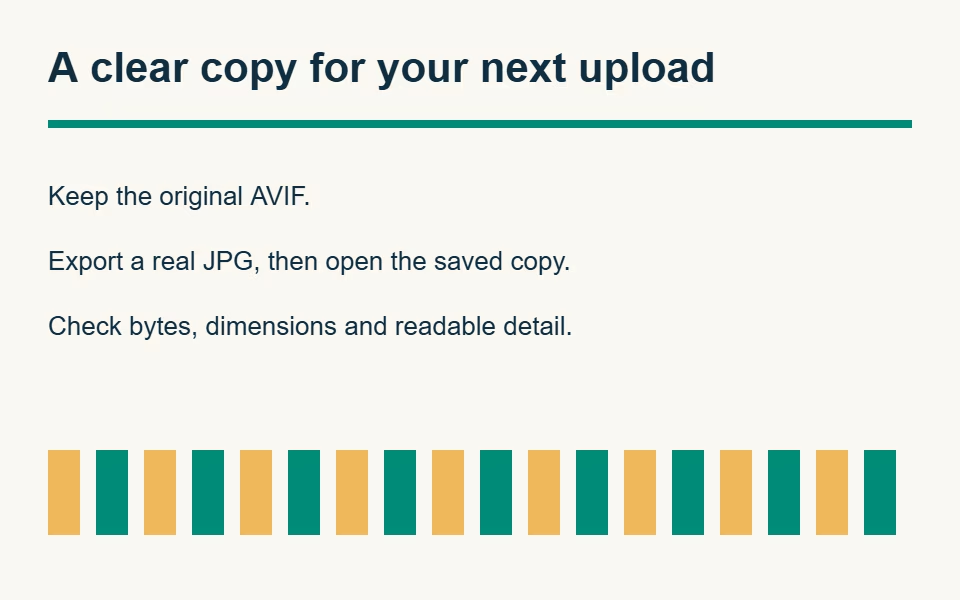
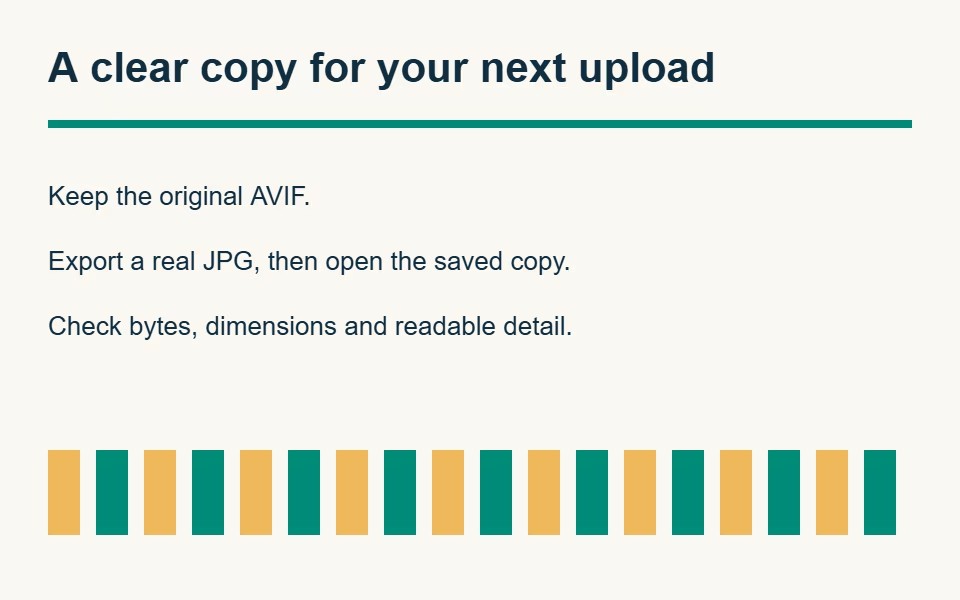
We ran three controlled samples through the same conversion function used by ImageFinch’s tool in desktop Chrome 155 on October 23, 2026, with JPG output at quality 90 and no resizing. We reopened the outputs to check their JPEG encoding and dimensions. The photo and transparent graphic reuse this site’s demonstration assets; the text board was created for this guide and encoded as AVIF at quality 75 before conversion. These are demonstration files, not a representative camera-photo benchmark.
| Sample | AVIF bytes | JPG bytes at quality 90 | Dimensions |
|---|---|---|---|
| Landscape photo | 117,209 | 115,205 | 688 × 384 |
| Transparent graphic | 2,702 | 7,341 | 480 × 320 |
| Text and color board | 15,450 | 43,598 | 960 × 600 |
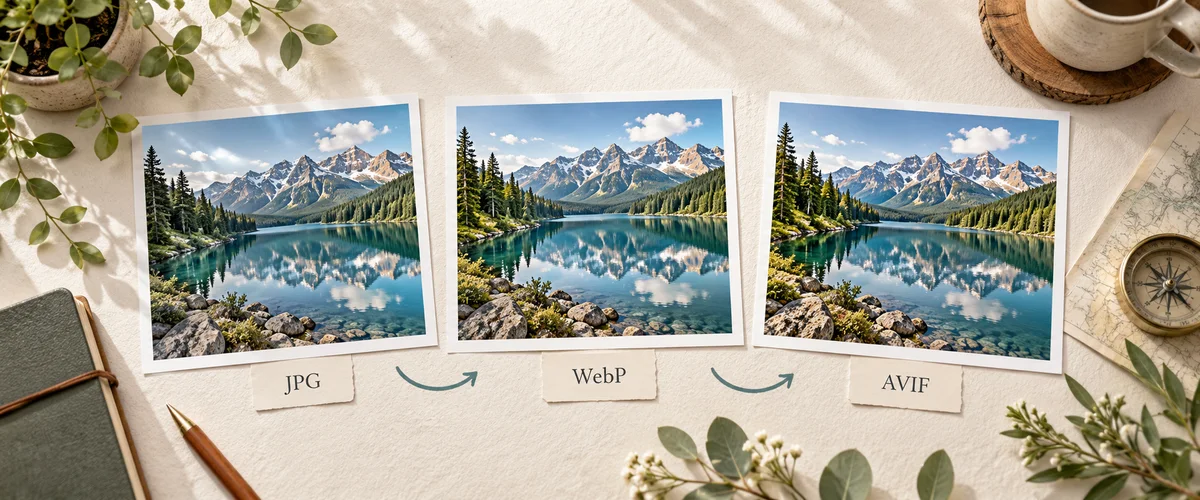
The photo became slightly smaller, while the graphic and text board became larger. That is why conversion should start with the required format, not an assumption about saving space. These byte counts describe the actual files in the links below; the article’s WebP comparison images are display previews. A different source, browser or quality setting can produce different results.
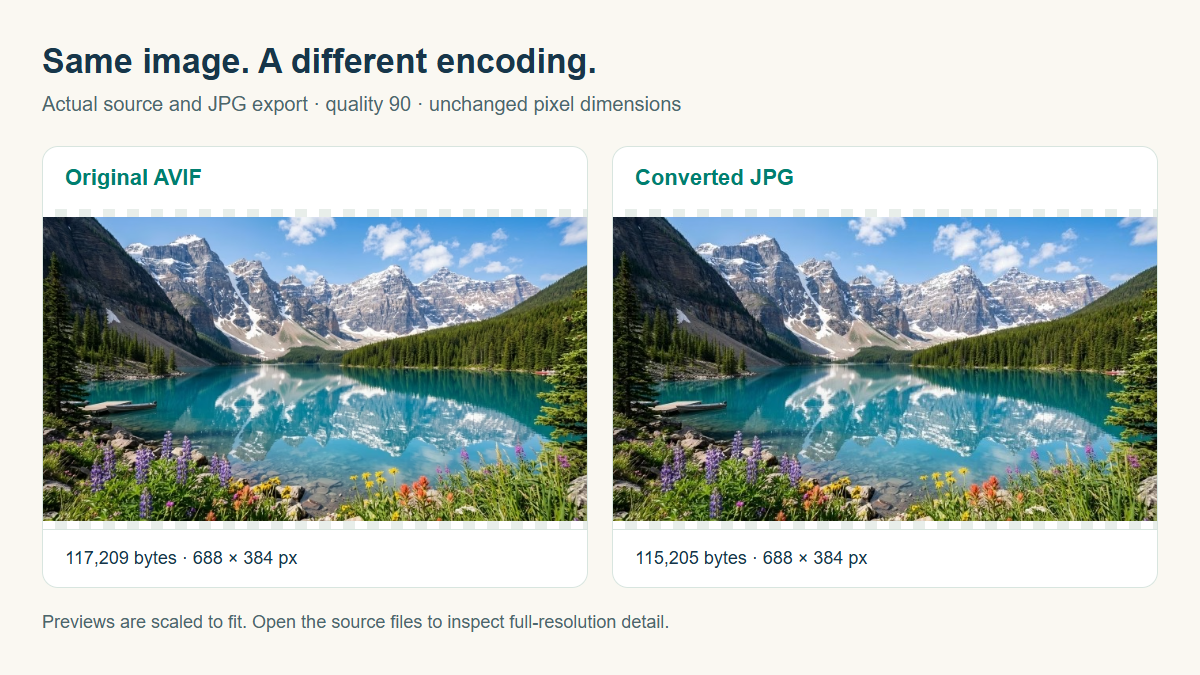
- Photo sample: original AVIF (117,209 bytes)
- Photo sample: converted JPG (115,205 bytes)
- Transparent graphic: original AVIF (2,702 bytes)
- Transparent graphic: converted JPG (7,341 bytes)
- Text board: original AVIF (15,450 bytes)
- Text board: converted JPG (43,598 bytes)
Which quality setting should you use?
Start with 90 and inspect the result at its intended display size. Look at lettering, hair, foliage and high-contrast edges. If you need a smaller file, try a lower quality setting from the original and compare again. A value of 90 is an encoder setting; it does not mean 90% of the original quality or a 90% reduction in bytes.
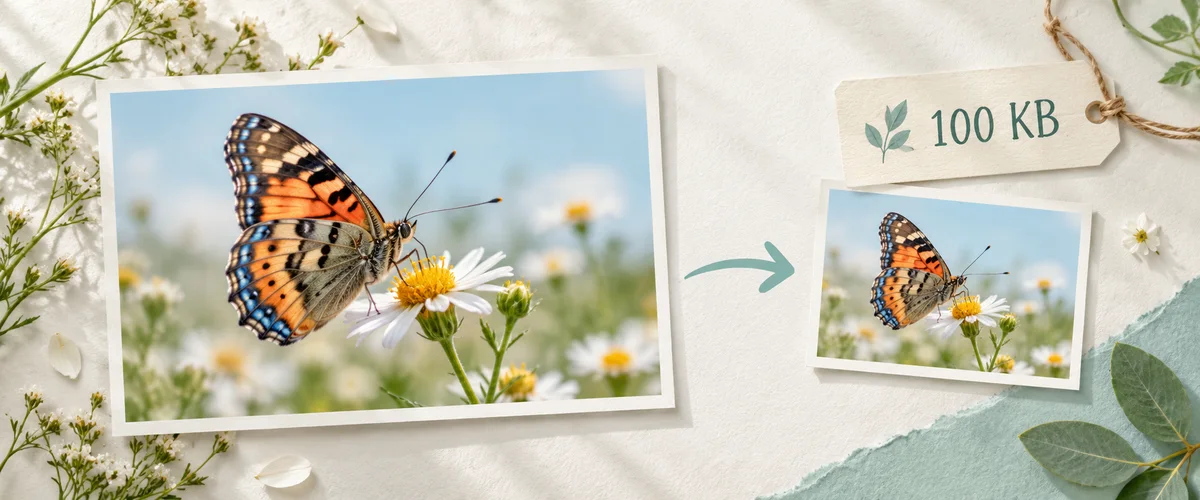
If the form accepts JPEG but the file is too large, use the JPG compressor or the 100KB target tool for an applicable limit. Change dimensions with the image resizer only when the destination allows it. Recheck both measurements before uploading.
Why did the transparent background turn white?
JPEG cannot store transparency, also called an alpha channel. ImageFinch places the image onto a white background before saving the JPG. Empty areas and partially transparent edges are blended with that white. Converting the JPG back to PNG afterwards does not restore the removed transparency.
For a logo, cutout or soft shadow that needs transparency, choose the AVIF to PNG converter instead. PNG can preserve an alpha-capable output, but it cannot undo damage already present in the AVIF and may use more storage.
How to batch convert AVIF to JPG and download a ZIP
Select several AVIF files together, or use + Add More after the first selection. Run conversion, review each result and choose Download All as ZIP for the completed copies. The ZIP is a container holding the JPG files; it is not itself a JPG and may not be accepted by an image-upload field. Extract it and select an individual image when required.
The current selection limit is 100 files, with a 100 MiB limit per input file. Those are ceilings, not a promise that every device can process that much at once. Decoded images use memory beyond their compressed file size. Start with a small batch on a phone, keep the tab open and download completed results even if another file fails.
Fix a JPG that still will not upload
An “AVIF file not supported” message means the receiving app could not accept that file. After conversion, select the new JPG and check the rest of the upload rules. A file can be the right format and still fail a size or dimension limit.
| Symptom | What to check |
|---|---|
| The form still says AVIF is unsupported | Select the downloaded .jpg copy, not the original AVIF. Renaming the original does not change its encoding. |
| JPG opens but the form rejects it | Check current byte limits, width, height, aspect ratio and any photo-composition requirements. |
| The downloaded JPG is larger | Try another quality setting from the original; reduce dimensions only if permitted. |
| The background or colors changed | JPG removes transparency; HDR and wide-gamut sources may look different. Keep the original and choose a suitable output. |
| The AVIF will not load | Try a current browser and a fresh copy from the source. A damaged or unsupported source may still fail. |
| Only one frame is visible | This is a still-image workflow. Use an animation-aware workflow if motion must be retained. |
Avoid repeatedly converting one export into another. Each lossy JPEG encode can introduce more artifacts. When trying settings, go back to the AVIF source and compare separate outputs. If the receiving service applies its own processing, inspect the uploaded copy as well as your local file.
- The downloaded copy opens in the receiving application.
- Its bytes and dimensions meet that destination’s current rules.
- Important text, faces, colors and edges remain usable.
- A white background is acceptable, or you chose PNG instead.
- The AVIF original is safely kept for another export.
Convert the original, preview the result and download the version your destination accepts.
Further reading and technical reference
- WebP vs AVIF vs JPEG: choose by image and destination
- The 100KB upload checklist: bytes and dimensions
- MDN image format guide: AVIF, JPEG and PNG capabilities